




A customer in Germany clicks an ad and opens a product page in German, but has to enter an address to find out whether the shop delivers to their area. A customer in Japan adds a product to their cart, then gets stuck at the postal code field because an error message appears in English. These issues can be easy to miss if you only check the shop in your everyday browser session.
If you manage an online shop, run ads, or handle testing, use three Hidemium profiles to follow the same shopping journey in the US, Germany, and Japan. Start with the URL customers will open, select the same product, and check the order total before placing the order. You can stop before confirming it.
Quick check
Create three Hidemium profiles and open the same product URL while signed out. Record the language, currency, price, and shipping information before changing any shop settings. Then select a market if the shop has a country selector, add the same variant to the cart, and enter a test address for that market. Compare the price, shipping options, shipping costs, and total with the shop’s configuration.
If you want to check how the shop detects a market based on IP address, use a test connection from each country, such as a proxy for that country. If you want to test the flow after a customer selects a country, use the market selector and shipping address.
Prepare before testing
Hidemium profiles let you keep browser sessions separate. A shop may determine a market based on the URL, a saved country selection, the connection location, or the shipping address. Naming a profile Shop QA – Germany makes the session easy to identify. To see which market the shop is serving, check the country shown by the shop and the destination country at checkout.
Before you start, prepare:
- An in-stock product with a fixed SKU, variant, and quantity. If you’re testing an ad, choose a product featured in the campaign and use the exact destination URL.
- An expected-results table for each market based on the shop’s settings or information from the person responsible. Record the price, currency, delivery areas, shipping costs, free-shipping threshold, and whether prices include tax. This helps you catch cases where all three sessions show the same incorrect value.
- An approved test address for each country, along with test data for required fields such as a phone number, if the form asks for one.
Step 1. Create three Hidemium profiles
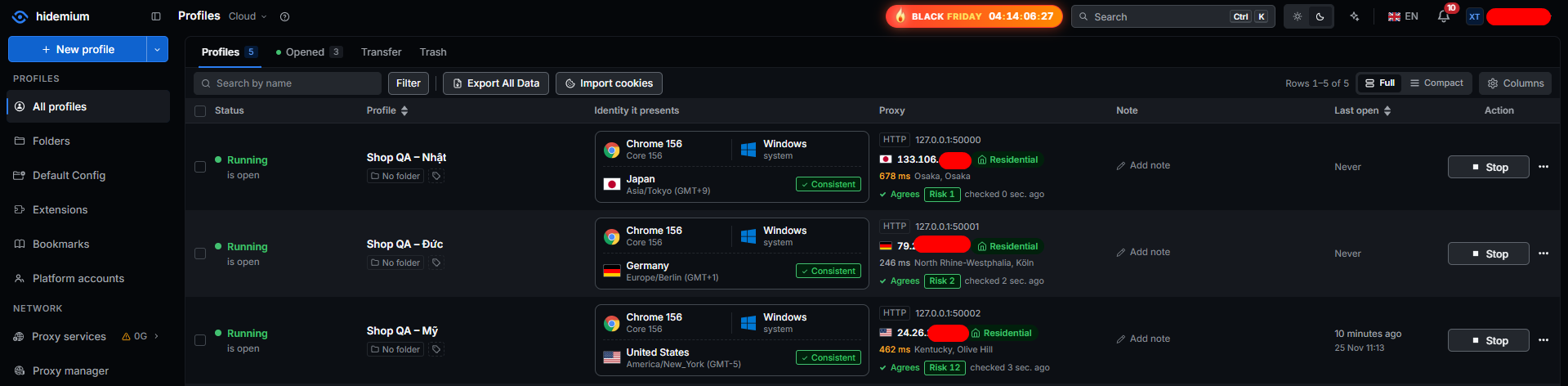
Create three profiles: Shop QA – US, Shop QA – Germany, and Shop QA – Japan. Use fresh sessions without signing in if you want to test the first-time shop experience.
If you’re testing whether the shop automatically detects a market based on IP, configure a test connection for each country and verify the IP location before opening the shop. If the shop also relies on browser language, record the language used in each session so you can repeat the test.
Step 2. Record what customers see when they first open the page
Open the same URL in all three profiles. For a specific campaign, use the exact landing page customers reach after clicking the ad. Before selecting a different country or language, record:
- The country or market shown by the shop.
- The language, currency, and price for the variant being tested.
- Tax and shipping information near the purchase button, if available.
- Anything that could block the customer’s next action, such as a cookie banner covering the purchase button on a small screen.
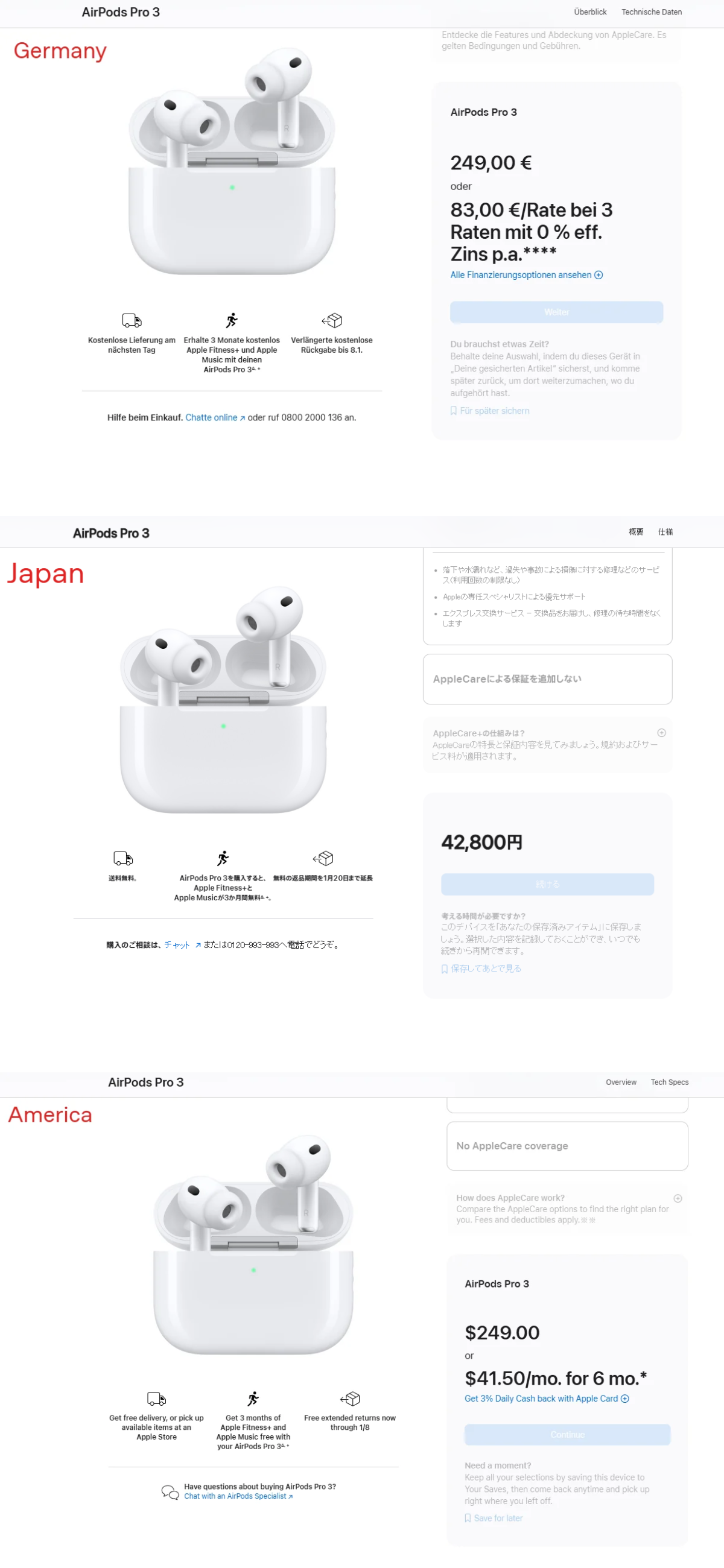
Capture the initial state. If the shop has a country selector, choose the market you want to test and record what changes separately. These two records help the team identify whether the issue occurs when a customer first opens the page or after they select a country.
Step 3. Add the product to the cart and test the shipping address
In each profile, add the same variant in the same quantity. Go to the shipping step and enter the test address for that market. Record separately whether the form accepts the address and whether the shop displays shipping options.
If the customer is blocked, save the error message, the field name, and the action immediately before the error appeared. Fields worth checking include ZIP code and state in the US, postal code (PLZ) and house number in Germany, and postal code and prefecture or city in Japan. If the Japanese form rejects a valid code such as 100-0001, record how it responds when the code is entered with a hyphen and when all seven digits are entered without one.
Step 4. Compare the total before placing the order
Record the product price, discount, shipping cost, tax, and total. If the campaign uses a promo code, enter the same code and record any conditions or messages shown by the shop. For international orders, also record any information the shop provides about import duties or surcharges, if applicable. Stop before confirming the order.
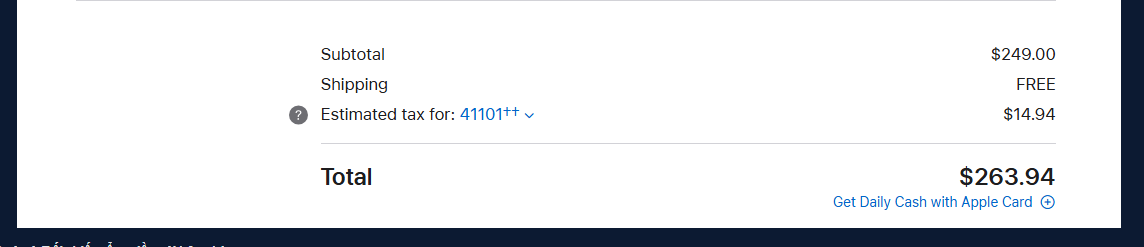
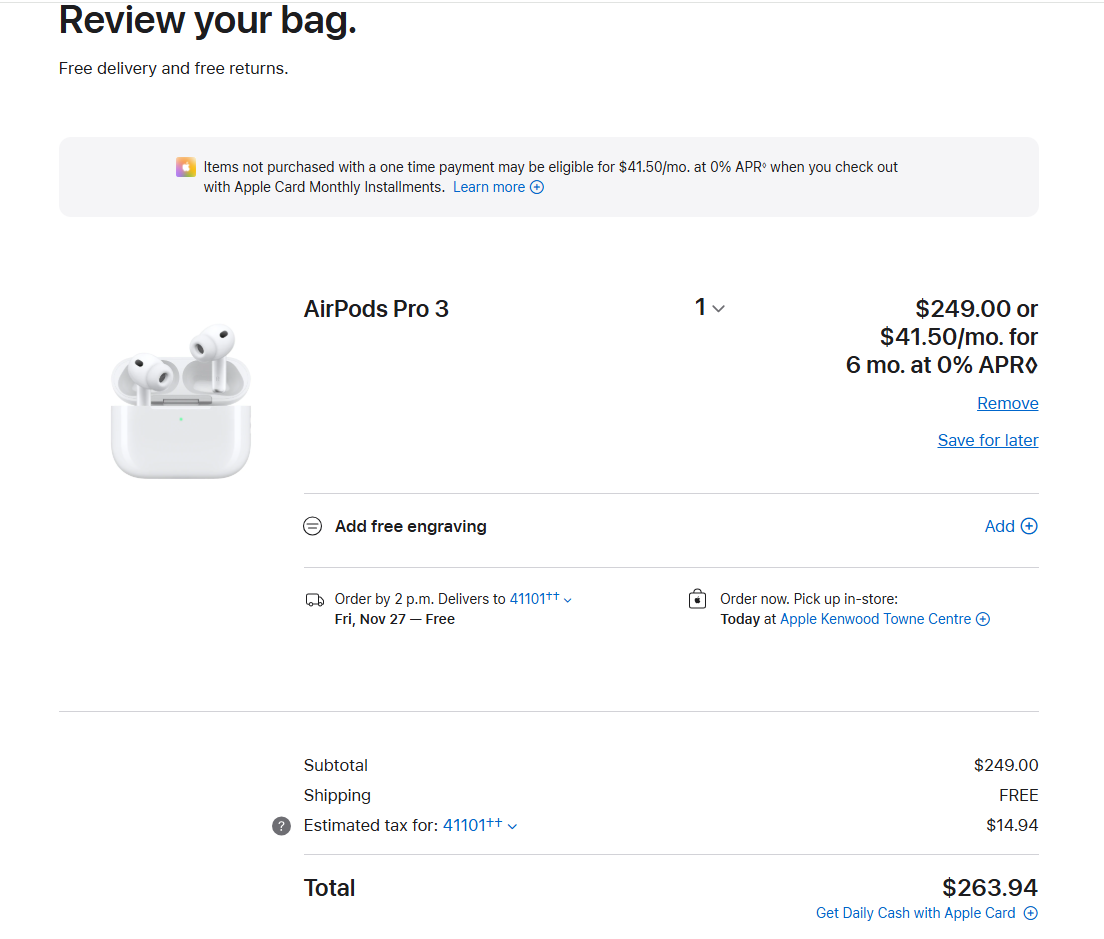
In the US Apple Store session captured for this article, AirPods Pro 3 cost $249.00 USD on the product page. The cart showed free delivery to the test ZIP code, estimated tax of $14.94, and an estimated total of $263.94. The tax shown in the cart accounts for the difference.
Use the same approach to review your shop. If the total changes, look for the corresponding tax, shipping cost, or discount and compare it with the expected-results table. If you can’t account for the difference, record the first step where the amount changed and capture screenshots from before and after that step.
Review the results and prioritize issues
| Market | Price recorded on the product page | Cart result |
|---|---|---|
| US | $249.00 USD | Free delivery to the test ZIP code. Estimated tax: $14.94. Estimated total: $263.94. |
| Germany | €249.00 EUR | Shipping options, costs, taxes, and cart total have not yet been confirmed. |
| Japan | ¥42,800 JPY | Shipping options, costs, taxes, and cart total have not yet been confirmed. |
These prices are figures recorded for this example. The US session was checked through to the cart. For Germany and Japan, the example only records the product-page price.
When reviewing your own shop, prioritize issues that prevent customers from continuing, such as a form rejecting a valid address or a cart that doesn’t show shipping options for an area the shop serves. Then check for anything that makes costs hard to predict, such as shipping charges appearing only just before the order is placed when the product page hasn’t explained that shipping costs depend on the address.
Hypothetical scenario. If the Japan session rejects a valid postal code and the Germany session shows the shipping cost only after an address is entered, address the form issue in Japan first because customers can’t continue. For Germany, check whether the shop tells customers when they’ll see the shipping cost.
If all three profiles show the same shop version
If you’re testing whether the shop automatically detects a market based on IP, verify the connection location for each profile. Then try the country selector, if the shop has one, and record the price, currency, and language before and after selecting a country.
A shop may use the same catalog, language, or currency for several countries, then apply shipping rules at checkout. If the product pages look the same in all three sessions, continue to the address step and compare the available shipping options with what you expect for each market.
Checklist before you finish
- Record the expected price, taxes, and shipping costs for each market.
- Open the same URL in three fresh sessions. Verify the IP location if testing automatic market detection.
- Record what appears on the first visit before changing the country or language.
- Keep the SKU, variant, quantity, and promo code the same.
- Check the address, shipping options, when the shipping cost appears, and the total.
- Save screenshots, note the steps to reproduce the issue, and repeat the test after making a fix.
Frequently asked questions
Do I need a proxy for each country?
You need a connection with an IP address from the relevant country if you want to test how the shop selects a market based on IP. If you only want to test the experience after a customer selects a country, use the market selector and a shipping address for that country.
Do I need to place a real order?
You can stop once you’ve seen the shipping options and total. If you need to test payment or order confirmation, do so in the shop’s test environment.
Is one test address per country enough?
One address is enough for an initial check. If the shop has different shipping areas or rates within a country, add a representative address for each area you need to test.
Should I test on a phone?
If most customers click your ads on mobile, repeat the flow on a mobile device. Pay attention to the purchase button, cookie banner, and address fields at checkout.
Conclusion
Start with one key product and use the same checklist for all three markets. After each test, you should be able to answer three questions: Can the shop deliver to this address? At what step does the customer see the shipping cost? Does the total match the expected configuration? If something differs, screenshots and steps to reproduce the issue will help the team check it again after a fix.