
In the digital age, using two computers in parallel to serve work is becoming more and more popular. To optimize performance and share data easily, connecting 2 computers via IP address is a useful solution, especially when both devices are on the same local network. Here are detailed instructions on how to do it.Antidetect Browser Hidemium:
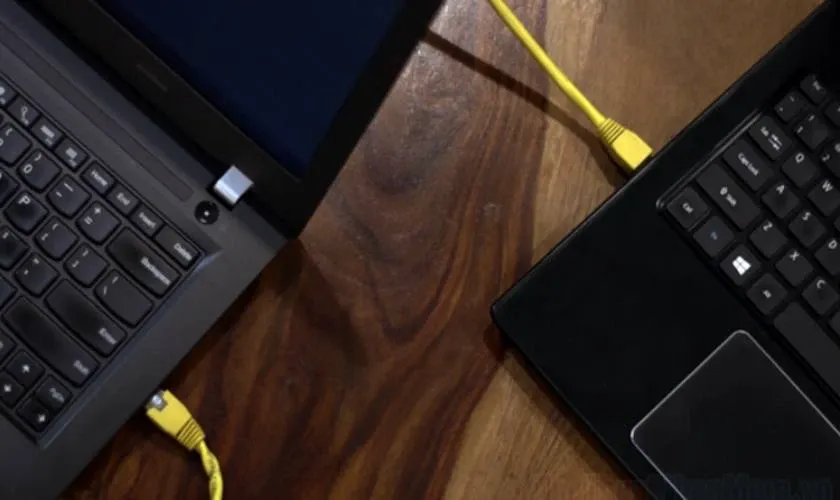
1. How to connect 2 computers via internal IP address
Connecting two computers on the same LAN allows you to share files and work flexibly without the need for the Internet. Follow these steps:
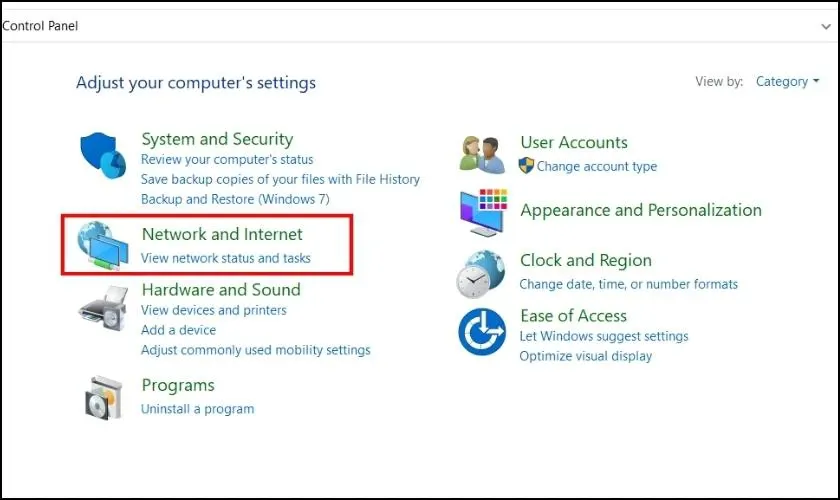
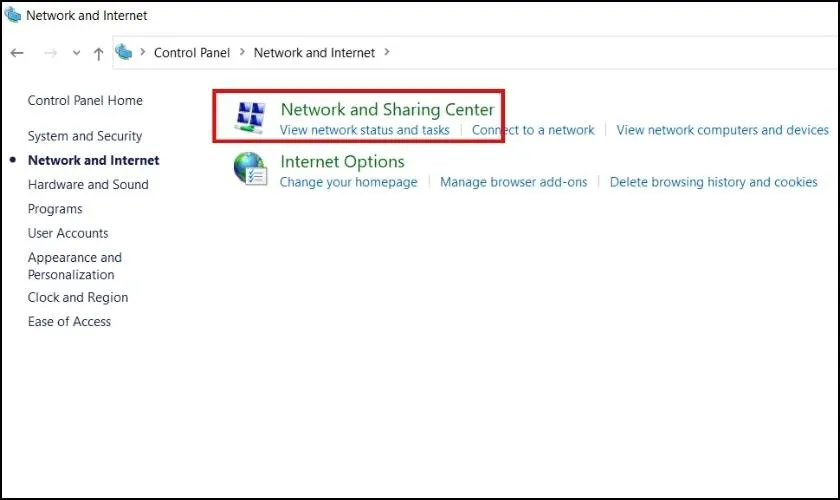
Step 1: Open Control Panel→ select Network and Internet → Network and Sharing Center→ press Change adapter settings.
Step 2:Right click on the connected network → select Properties. You can also click on the network icon in the bottom right corner of the screen and do the same.
Step 3:Double click Internet Protocol Version 4 (TCP/IPv4)→ select Properties→ enter the IP address and subnet mask for each computer in the same IP range. For example:
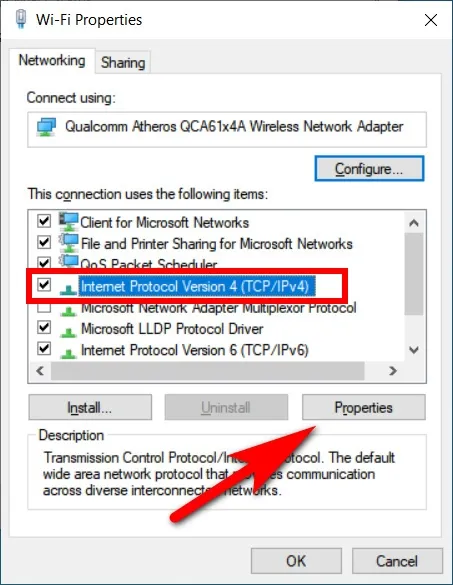
Computer 1: IP Address – 192.168.1.11
Computer 2: IP Address – 192.168.1.12
Subnet Mask – 255.255.255.0

Thiết lập địa chỉ IP máy 1

Thiết lập địa chỉ IP máy 2
Step 4: Open Command Prompt And use the command ping to test the connection between two devices. For example, from device 1, typing 192.168.1.12.
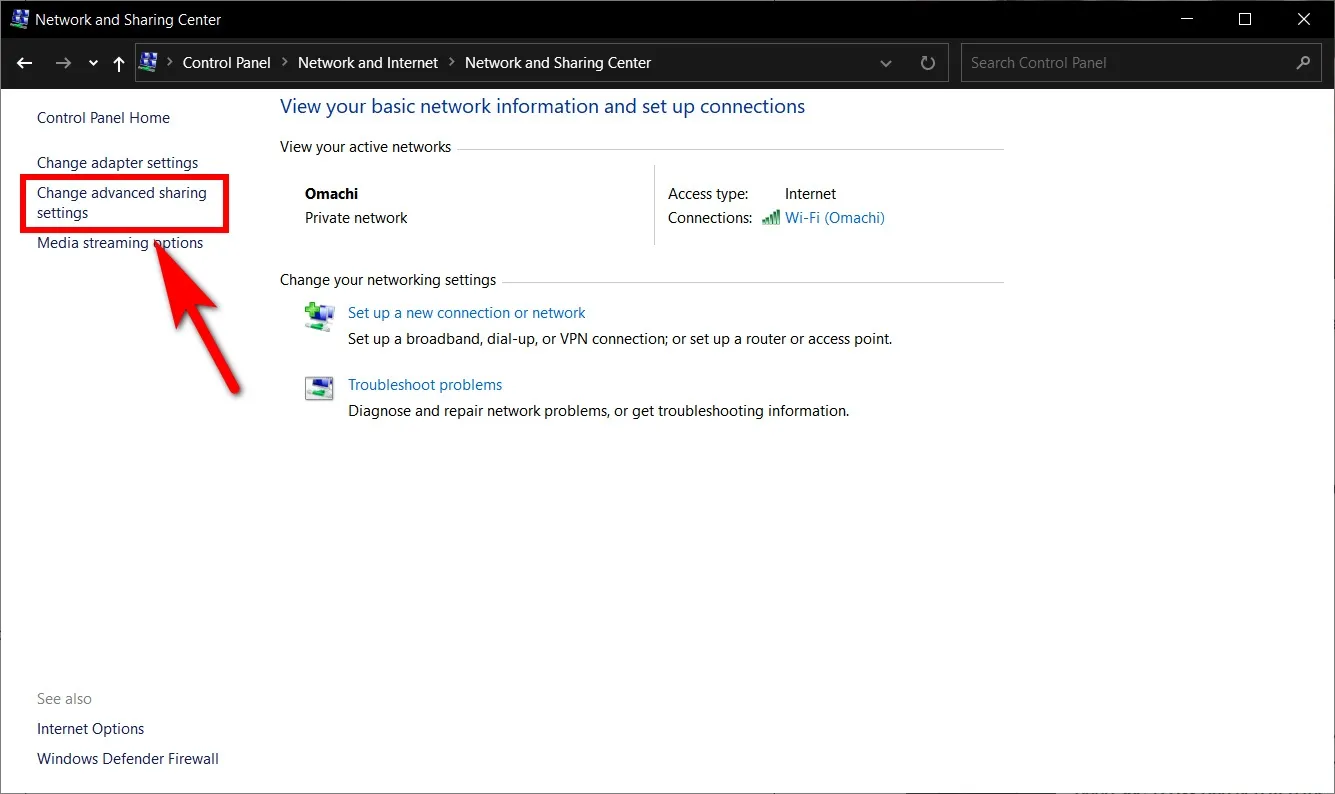
Step 5:Enable network sharing:
Access Network and Sharing Center→ select Change advanced sharing settings.
On Turn on network discovery.
Turn off File and printer sharing if not necessary
In the section All Networks, select:
Turn on sharing so anyone with network access can read and write files in the public folders
Turn off password protected sharing
Press Save changes to save settings.
After completing the above steps, the two computers will be connected via internal IP address, allowing for fast and convenient data transfer.
>>> Learn more: What is an IP address? How to hide IP address
2. Instructions on how to share data between two computers via IP address
Once you have successfully connected two computers using IP addresses, follow these steps to share data easily and quickly:
Step 1:Right click on the folder you want to share and select Properties (Property).
Step 2:In the new window, select the tabSharing, then press the button Sharing. If you want a more detailed configuration, select Advanced Sharing to set advanced sharing permissions.
Step 3:At the sharing interface, click on the arrow icon in the right corner to select Everyone– allow sharing with all devices in the network. Then pressEd to add a group of devices to connect.
Step 4:Grant access as needed:
Read: Only allow other devices to view or copy data.
Read/Write: Allows editing, changing or deleting data in shared folders.
Step 5: Press ShareTo start sharing data, then tap to complete the setup process.
>>> Learn more: 7 Free Online IP Fingerprint Checker Tools
3. Ways to connect computers to share data
Depending on the conditions and purposes of use, you can choose the appropriate connection method between two computers. Here are some popular options:
3.1. Connect two computers via WiFi
Step 1:Access Control Panel And open Network and Sharing Center.
Step 2: Select Set up a new connection or network, continue to click Set up a wireless ad hoc (computer-to-computer) network to start setting up a peer-to-peer network.
Step 3:Enter the network name in the box Network name, select security as WPA2-Personal, then enter the password at Security key. Press Next To complete setup.
Once configured, other computers just need to turn on WiFi and search for the network name you just created to connect easily.

>>> Learn more: How to find Facebook IP address using mobile phone
3.2. Connect two computers using a USB – USB cable
Step 1:Use a USB – USB cable to connect two computers by plugging both ends directly into the USB ports of each device.
Step 2:Access Network and Sharing Center To setup LAN sharing via USB port and Internet connection.
Step 3:For computers using older operating systems, you need to install drivers and support software before you can successfully share data.
If you frequently share data and need IP security or access restricted websites, use Hidemium Incognito Browser– a complete solution for changing IP, creating virtual identities and managing multiple accounts on the same device. Hidemium makes it easy to protect your privacy, prevent tracking and increase flexibility when connecting to the network.
>>> Learn more: Top 7 Ways to Bypass an IP Ban
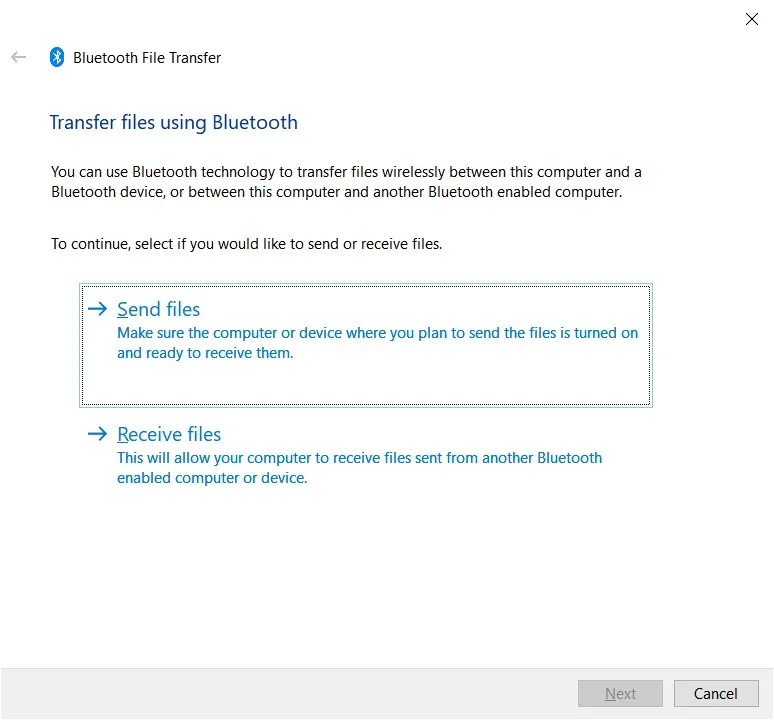
3.3. How to connect two computers via Bluetooth
You can easily connect two computers together via Bluetooth with these simple steps:
Step 1: Access Setting on both computers and check Bluetooth is enabled. If not, enable it and proceed to search for the remaining device.
Step 2: Once the two devices recognize each other, proceed.pair by entering PIN verification code to ensure safe and correct connection.
Step 3: After successful connection, you can now share data between two machines quickly and efficiently.
3.4. How to connect two computers over the Internet
In addition to Bluetooth, you can also connect two computers remotely over the Internet Thanks to specialized support software. Here are some popular, easy-to-use and highly effective tools:
GoToMyPC: Featured with a friendly interface and fast transmission speed, this software allows connecting two computers easily. However, the version of macOS Not fully featured as above version Windows.
TeamViewer: Trusted by many IT professionals for its capabilities, stable connection, Flexible remote support and continuously updated to enhance user experience.
Admin: The outstanding advantage is fast processing speed, support smooth data transmission and equipped with many features to support teamwork or remote presentations.
ShowMyPC: Also a tool worth considering with its features recording operation, good support for the sharing process. However, the unfriendly interface and transmission speed still needs to be improved.
>>> Learn more: IP location checker: automatically matches browser location settings with external IP address location settings
The above article has guided you Connect two computers via Bluetooth and the Internet Easily. If you are looking for a solution to hide ip address, Enhanced Security and access blocked websites, then Proxy Server combined with Hidemium tool is the ideal choice.
Hidemium Allows you to create multiple browser profiles with Different IP addresses and virtual identities on the same device. This feature makes it easy for you to Manage multiple accounts, protect personal information and optimize access efficiency.
👉 Sign up for a 3-day free trial today to experience the full features of Hidemium!
Related Blogs

Using a proxy or VPN is not enough to stay anonymous because an IP address is only a small part of a digital identity. In reality, users can still be exposed through their browser fingerprint, making accounts vulnerable to being flagged or suspended.In this article, Hidemium will help you understand why a proxy alone is insufficient to protect you, while also pointing out comprehensive solutions[…]
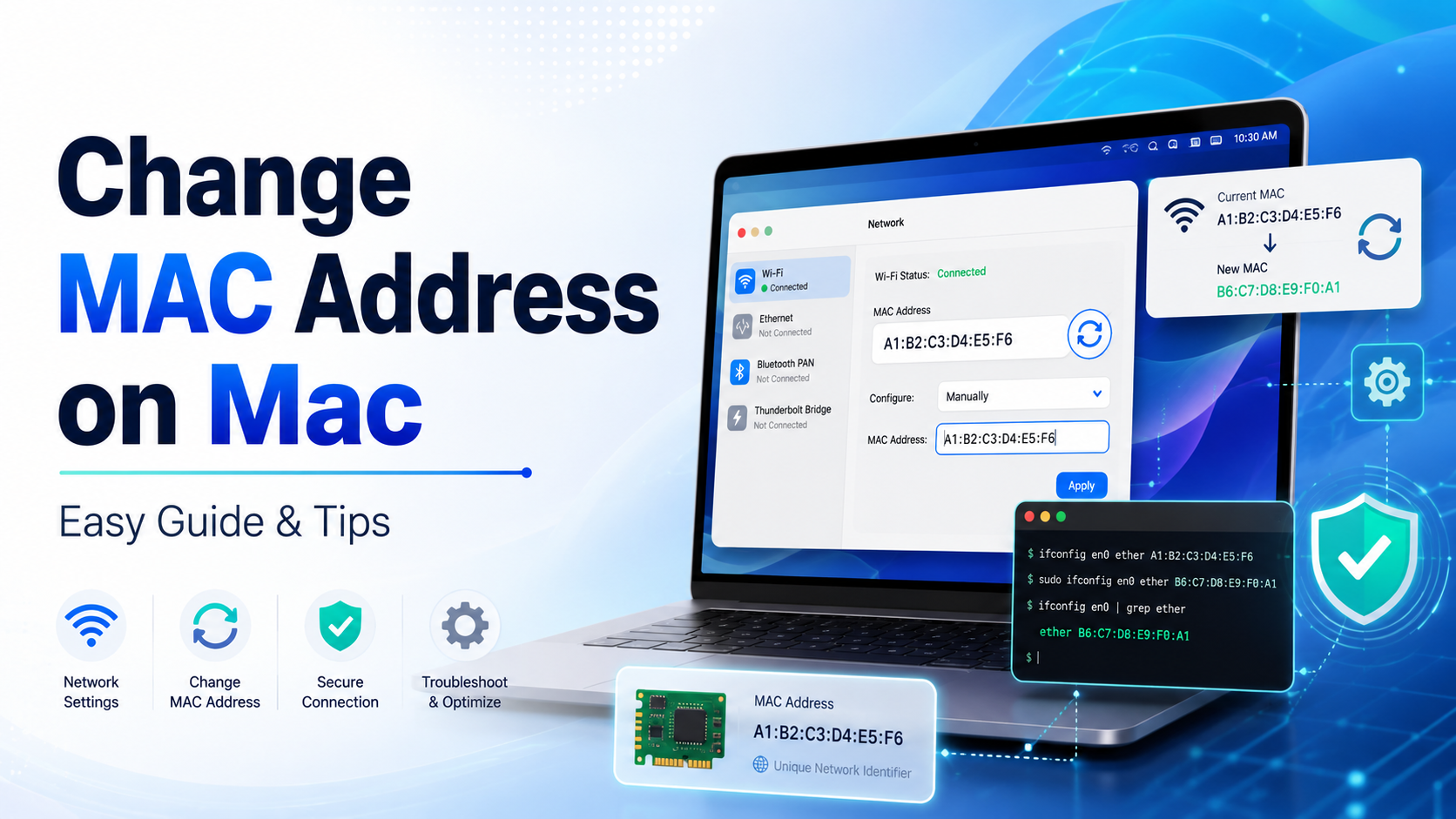
How to Change MAC Address on Mac: Complete Privacy GuideIn today's hyper-connected world, protecting your digital identity has never been more important. Every time your Mac connects to a network, it broadcasts a unique hardware identifier that can be logged, tracked, and used to build a profile of your behavior. If you've ever wondered how to change MAC address on Mac, you're not alone — it's[…]

In MMO, dropshipping, and affiliate business models, managing multiple accounts on a single device always comes with significant risks—frequent checkpoints, shadowbans, or even mass account suspensions. Logging into multiple accounts using a traditional browser makes it easy to leave overlapping digital footprints, which greatly increases the likelihood of account bans. This is exactly why[…]
 (1).png)
Managing multiple TikTok accounts can be a challenge, especially if you don’t want your content to be flagged or banned. If you're running multiple accounts on a single device, TikTok might mistake you for a business and stop displaying your content on the "For You" page. This means fewer views and engagement, which can seriously impact your reach, especially considering that 30% of global[…]
.png)
GenLogin is marketed as a user-friendly software with a simple interface and basic security features. However, claiming to be "safe" and "user-friendly" is not enough to confirm its actual effectiveness. Many users have reported concerns about the platform potentially exposing personal information and raised issues regarding lack of transparency, particularly related to the integration of the P2P[…]
.png)
Posters are among the most effective visual tools for marketing. They are used for events, promotions, branding, and social media campaigns. Nowadays, online tools make designing posters quick and easy. You don’t need design experience to create something professional.However, not all poster makers provide the same results. Some emphasize speed and automation. Others focus on creative manual[…]
