


Is your Hidemium subscription about to expire? Renewing your plan helps you maintain access to the features included in your subscription and continue your browser profile management workflow.
You can complete the renewal process through the Hidemium application. Before paying, check your current plan, subscription expiration date, and account information to avoid mistakes.
This guide explains how to renew your Hidemium subscription in five steps, how to confirm your payment, and what to do if your subscription does not update.
Quick Answer: How Do You Renew Hidemium?
To renew your Hidemium subscription:
- Open the Hidemium application and sign in.
- Go to the subscription management section.
- Choose your plan and subscription duration.
- Review the payment details and complete the payment.
- Check the active subscription and expiration date.
Important: Make sure you are signed in to the correct account before completing your purchase.
If you are unsure which plan to choose, visit the Hidemium Pricing page to review the available options.
1. Check Your Current Hidemium Plan Before Renewing
Before renewing, sign in to Hidemium and review your subscription information.
Check the following details:
- Current plan: Which subscription are you using?
- Expiration date: When does your current subscription end?
- Profile requirements: How many browser profiles do you need?
- Team requirements: Do you need access for additional team members?
- Available features: Does your current plan include the functionality required for your workflow?
Reviewing these details can help you avoid purchasing an unsuitable subscription.
If your workflow has changed, compare the available options before making a payment.
For example, a user managing a small number of personal browser profiles may have different requirements from a team handling larger projects.
Do not assume that upgrading a plan automatically changes the expiration date or preserves all unused subscription time. Confirm the applicable conditions first.
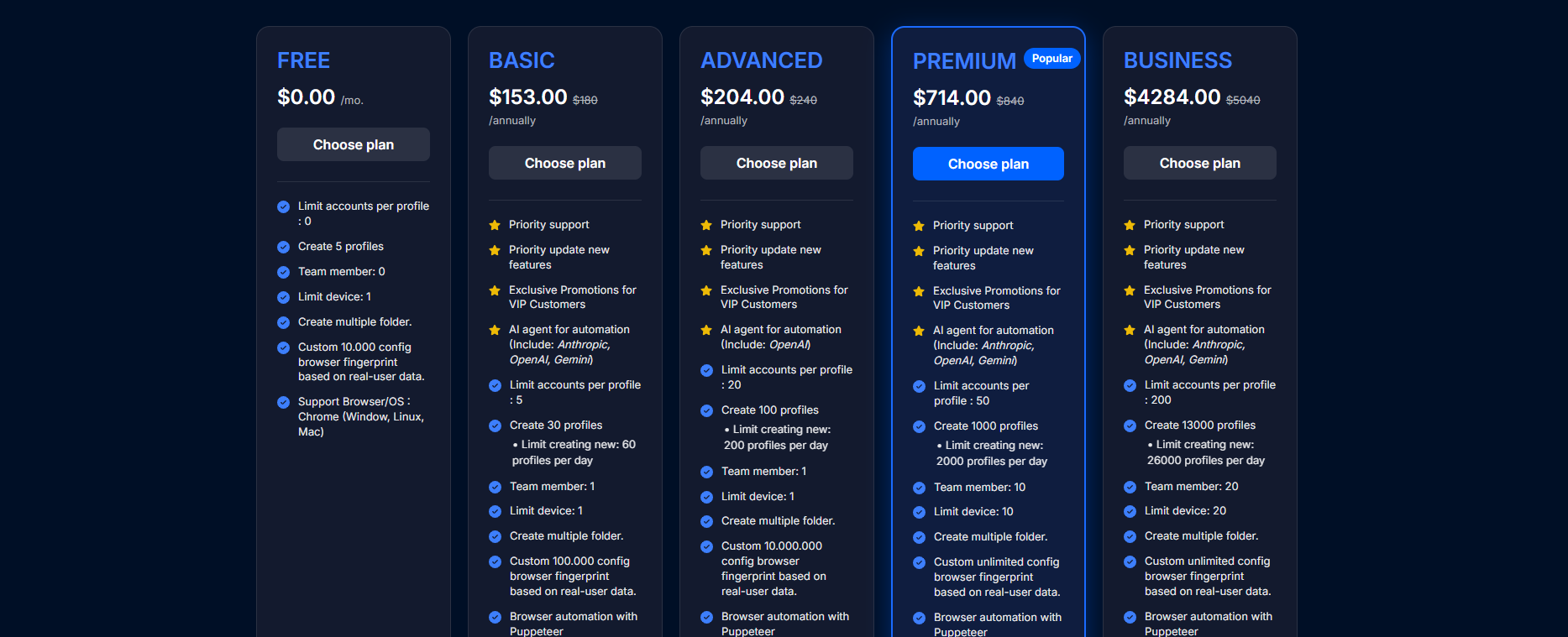
You can compare Hidemium plans and pricing before renewing.
2. How to Renew Your Hidemium Subscription in 5 Steps
Follow the steps below to renew your subscription through the Hidemium application.
Step 1: Open Hidemium and Sign In
Launch the Hidemium app on your computer.
Sign in using the account associated with the subscription you want to renew.
If you use more than one Hidemium account, check the account email carefully.
Renewing the wrong account may require additional verification with support.
If you do not have Hidemium installed, visit the official Hidemium download page.
Step 2: Open Subscription Management
After signing in, find the subscription or plan management section in the application.
Review your current plan and expiration date.
The location or exact name of the subscription menu may vary by application version.
If the option is not visible, check the instructions available in your installed version or contact Hidemium support.
Step 3: Choose a Plan and Subscription Duration
Select the available plan that matches your needs.
Review the subscription duration, included features, and amount displayed in the app.
Before continuing, confirm:
- The selected plan is correct.
- The billing period meets your needs.
- The account is the intended one.
- The total payment amount is correct.
If you plan to change subscriptions instead of renewing the same plan, clarify how your remaining subscription time will be handled.
Step 4: Complete the Payment
Follow the payment instructions displayed in Hidemium.
Check the transaction details before confirming.
The available payment methods may depend on the application version and current service options. Use only methods shown through the official payment workflow.
After completing the transaction, save the confirmation and any transaction reference number.
Do not share one-time verification codes, passwords, or complete payment card information with anyone.
Step 5: Confirm Your Subscription Has Been Renewed
Return to your Hidemium account and check your subscription information.
Confirm:
- The intended plan is active.
- The displayed expiration date matches the renewal terms.
- Your payment has been recorded.
If the payment was successful but the subscription details have not changed, do not immediately submit another payment. Follow the troubleshooting guidance below.
3. Payment Completed but Subscription Not Updated?
A common concern is completing a payment without seeing the expected subscription update.
If this happens, first review your payment confirmation and check that you are logged in to the account used for the transaction.
Then prepare the following information:
- Hidemium account email.
- Purchased plan and subscription duration.
- Transaction ID or payment confirmation.
- Payment date and time.
- The issue you are experiencing.
Contact Hidemium support through the official website or email [email protected].
Explain that the payment has been completed but the subscription expiration date has not updated.
Avoid making a second payment until the original transaction has been checked, as this could lead to duplicate charges.
When sharing screenshots, hide passwords, verification codes, and full card details.
4. Can You Renew Hidemium Before It Expires?
You may want to renew early so that your workflow is not interrupted.
Before doing so, confirm how the renewal affects your current subscription.
Important questions include:
- Will unused subscription time be carried forward?
- How will the new expiration date be calculated?
- What happens if you upgrade or downgrade?
- Are there additional charges for changing plans?
The supplied renewal instructions do not establish a universal rule for these cases.
Check the terms displayed during the purchase process or ask Hidemium support for confirmation before paying.
This is especially important if your existing plan has substantial time remaining.
5. Common Hidemium Renewal Problems and Solutions
Payment Is Still Pending
If the transaction has not been completed, review the payment status with your payment provider.
Follow any remaining steps shown in the official payment interface.
Avoid starting repeated transactions without first understanding the status of the original payment.
Payment Succeeded but Expiration Date Did Not Change
Check your transaction confirmation and account email.
Contact support with the relevant transaction information and request verification.
Do not pay again until the issue is reviewed.
Subscription Was Applied to the Wrong Account
Check which Hidemium account was signed in during the purchase.
If you used another account, contact support and provide the transaction details.
Whether a payment can be transferred or corrected depends on the provider's policies.
Cannot Find the Renewal Option
Check your application version and the available subscription menus.
If the interface differs from this guide, ask support for instructions for your version.
A Profile Says “Running on Another Device” After Renewal
A profile session warning is not necessarily a subscription payment problem.
Check whether the profile is still active on another device or whether synchronization is pending.
Read the guide to fixing the “Profile Is Running on Another Device” error for troubleshooting.
6. Tips for a Smooth Hidemium Renewal
Check the expiration date early. Review your subscription before important work periods.
Confirm the correct account. Make sure you are renewing the intended email account.
Choose a suitable plan. Compare profile needs, collaboration requirements, and available features.
Keep your payment records. Save the transaction ID, date, amount, and confirmation.
Clarify plan changes. Confirm how upgrades, downgrades, and remaining time are handled.
Protect sensitive details. Use official payment channels and never disclose passwords or verification codes.
You can also explore Hidemium V4 features to understand the browser management tools available.
7. Conclusion: Renew Hidemium Without Interrupting Your Workflow
Renewing your Hidemium subscription involves five main actions: checking your account, reviewing your plan, selecting a duration, completing payment, and verifying the new expiration date.
If your payment is not reflected in your account, keep the transaction information and contact support instead of paying repeatedly.
Before renewing early or switching plans, confirm how the remaining subscription time will be handled.
Explore Hidemium Plans and open the application to review your renewal options.
8. Frequently Asked Questions
Where can I renew my Hidemium subscription?
According to the supplied renewal guide, you can renew through the Hidemium application. Visit the official pricing page to compare plans.
How do I check when my Hidemium subscription expires?
Sign in to your Hidemium account and review the current plan and expiration date in the subscription management section.
How do I know my Hidemium renewal was successful?
Confirm that the appropriate plan is active and the expiration date reflects your renewal terms.
Can I switch plans when renewing?
Review available options in the app and confirm the price, duration, and treatment of remaining subscription time before paying.
What should I do if my payment was deducted but the plan has not updated?
Keep your payment confirmation and contact support. Avoid paying a second time before the original transaction is verified.
Does renewing early extend my existing subscription time?
The answer depends on the applicable subscription terms. Confirm how the remaining time is calculated before completing an early renewal.
Will my browser profiles be deleted if my subscription expires?
The supplied guide does not confirm a universal data retention policy. Contact Hidemium support to verify data access and retention terms before making changes to your profiles.
Can I renew Hidemium without opening the app?
The supplied instructions describe renewing inside the app. If you need another method, verify the available official options with support.