.png)

To log in to X/Twitter Web, open x.com, select “Log in,” and enter your email, phone number, or username and password. If login fails, check your credentials, browser cookies, network connection, and account status before trying another browser or device.
For businesses managing multiple legitimate X accounts, separate browser profiles can help keep cookies, sessions, and account environments organized. Hidemium provides isolated browser profiles and proxy configuration for this type of workflow.
X, formerly Twitter, can be accessed directly through x.com on desktop and mobile browsers. The web version is useful for everyday users as well as marketers and businesses that manage content, customer interactions, and multiple brand accounts from a computer.

1. Can You Log In to X/Twitter on the Web?-
Yes! Simply open your browser and go to x.com to access all the main features without installing any app. Whether you're on a desktop or laptop, logging in via web browser is quick and convenient. Plus, it’s ideal for those who need to manage multiple accounts without constantly switching devices. For teams managing multiple legitimate X accounts, separate browser profiles can help keep cookies, login sessions, proxies, and account environments organized. An antidetect browser such as Hidemium provides this type of profile isolation.
Yes. X/Twitter supports browser-based access through x.com, so you can log in without installing the mobile app.
Tip: TIf you manage multiple X accounts for different brands, clients, or markets, Hidemium can help separate browser profiles, cookies, sessions, and proxy configurations in one workspace.
2. What Are the Key Features of X/Twitter Web?
When you log in to X/Twitter Web, you’ll enjoy most mobile app features along with browser-specific advantages:
Real-Time Feed: Stay updated with continuous content streams from the accounts you follow.
Direct Messages (DMs): Easily send and receive messages directly through the web interface.
Profile Management: Update your profile info, change your avatar, and edit your bio directly from the web.
Tweet and Retweet: Post tweets, retweet, and like posts conveniently, with a larger screen making interactions smoother.
Lists and Bookmarks: Manage your followed lists and save important tweets for later viewing.
Overall, X/Twitter Web offers a seamless and efficient experience, especially suited for users who work primarily on computers.
In short, X/Twitter Web provides the core functions needed for posting, messaging, profile management, content monitoring, and day-to-day account operations from a browser.
3. How to Log In to X/Twitter Web in 3 Steps
To access X/Twitter Web, simply follow these steps:
📌Quick Answer: To log in to X/Twitter Web:
- Go to x.com.
- Select Log in.
- Enter your email, phone number, or username and password, then complete any verification requested by X.
- Open x.com
Launch Chrome, Firefox, Safari, Edge, or another supported browser and visit https://x.com/. - Select Log in
Choose the login option on the X homepage. - Enter your credentials
Enter your phone number, email, or username and password. Complete additional verification if X requests it.
In short, logging in to X/Twitter Web only requires x.com, your account credentials, and any security verification requested by the platform.

4. Why Can’t I Log In to X/Twitter Web and How Do I Fix It?
If X/Twitter Web login is not working, first verify your username and password, check your connection, clear browser cookies, and complete any account verification requested by X. If the problem continues, test another browser or check whether X is experiencing a service issue.
If you encounter login problems on X/Twitter, try the following solutions:
📌 Quick Fix: X/Twitter login not working?
Try in order: ① Check your internet connection; ② Clear browser cache and cookies; ③ Use "Forgot password?" to reset; ④ Check X server status; ⑤ Try a different browser or device.
- Check username/password.
- Check internet connection.
- Complete account verification.
- Clear X/Twitter cookies and cache.
- Reset password.
- Try private/incognito mode.
- Try another browser/device.
- Check X service status.
- Contact official X Support.
5. How to Register an X/Twitter Account on the Web
Creating an X.com account is very simple. Just follow these steps:
Access the X/Twitter Website: Open your browser and go to x.com.
Select "Create Account": On the homepage, click the "Create Account" button to get started.
Enter Personal Information: Provide your name, email address, and date of birth. These are basic details required to set up your account.
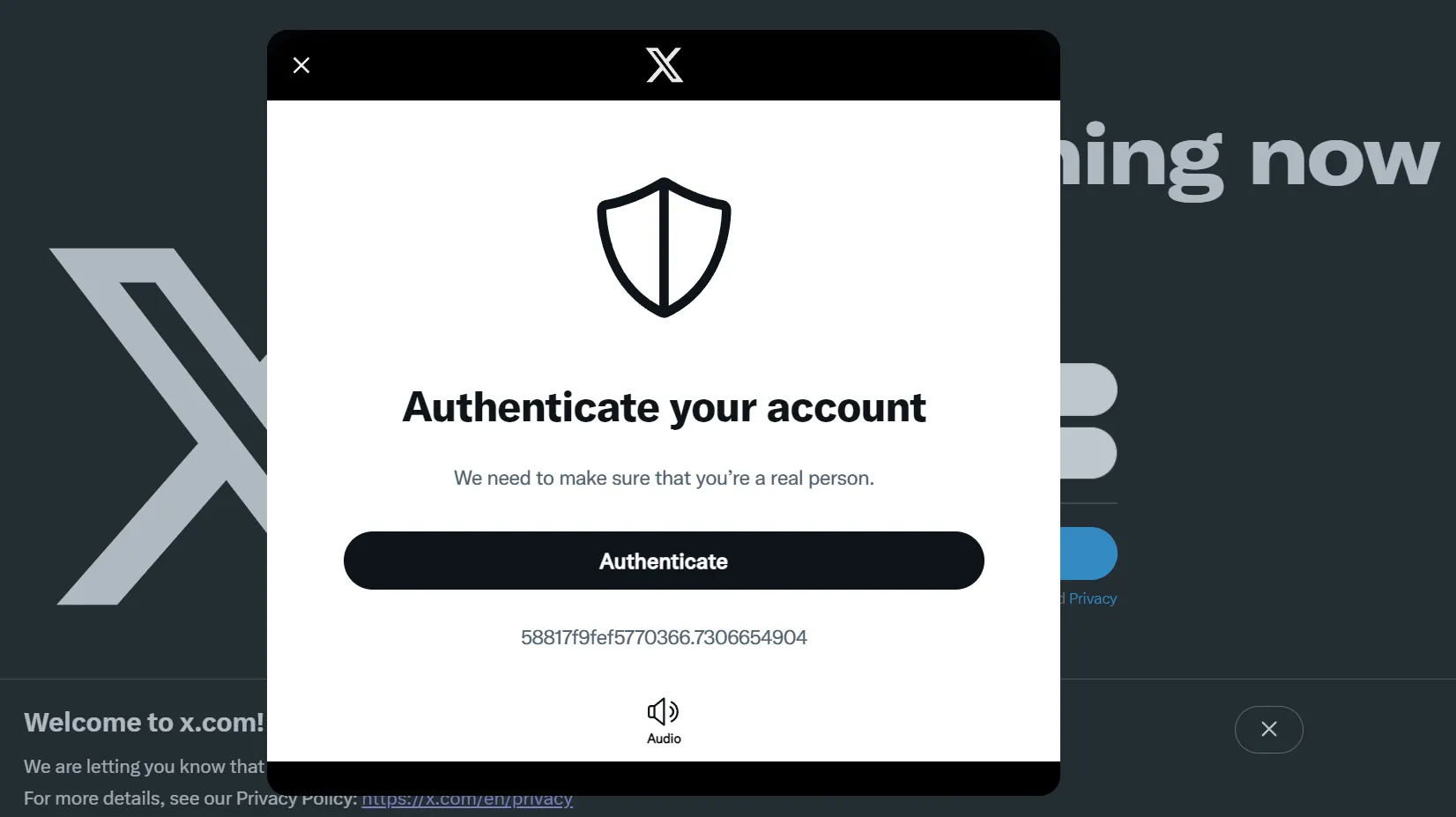
User Verification: Complete verification tasks like selecting images or solving a captcha to confirm you are not a robot.
Verify Your Account: X/Twitter will send a verification code via SMS or email. Enter the code in the designated field to complete the verification.
Create a Password: Set a strong password combining letters, numbers, and special characters to enhance account security.
Customize Your Profile: After successful registration, you can add a profile picture, update your bio, and fill in other personal details.
Follow Suggested Accounts: Based on your interests, X/Twitter will suggest relevant accounts for you to follow. You can choose to follow them or skip.
Start Tweeting: Once your account is fully set up, you can explore and connect with the X/Twitter community through your posts (Tweets)
In short, creating an X account on the web requires basic account information, verification, a secure password, and completion of the setup prompts shown by X.
6. Securely Log Into Multiple X/Twitter Accounts Using an Anonymous Browser
- Use separate accounts only for legitimate brands, regions, clients, or teams.
- Avoid duplicate or spam-like posting patterns.
- Keep account credentials and sessions clearly separated.
- Use role-based access when multiple team members are involved.
- Document which team member owns each account.
- Follow X Rules and platform manipulation policies.
- Avoid assuming that a proxy or browser profile guarantees protection from enforcement.
When managing multiple X/Twitter accounts, security is always the top priority. Using an anonymous browser not only ensures safe logins across various accounts but also minimizes the risk of unexpected warnings or account bans.
6.1 What Is an Anonymous Browser?
Cross-border teams often manage separate X accounts for different brands, regions, languages, or customer-support operations. Keep each account’s purpose clear, avoid coordinated manipulation, and make sure each team follows X policies.
Separate browser sessions can reduce operational mistakes such as logging into the wrong brand account or mixing cookies and credentials between markets.
An anonymous browser is a tool designed to hide your digital footprints and online identity. This makes it difficult for websites, including X/Twitter, to track or link activities across different accounts. It's an ideal solution for marketers, social media managers, and anyone operating multiple accounts on the same platform.
👉 Further reading: Want to understand how antidetect browsers work? Read: What Is an Antidetect Browser and Why Do You Need It?
6.2 What Is Hidemium for X/Twitter Multi-Account Management?
Hidemium is an antidetect browser designed to create and manage separate browser profiles. Each profile can maintain its own cookies, session data, fingerprint settings, and proxy configuration, helping marketers and e-commerce teams organize legitimate multi-account workflows.
Hidemium does not override X policies or guarantee that an account will never be restricted. Account behavior and compliance with X Rules remain important.
6.2.1 Install an Antidetect Browser First
Download and install a dedicated anonymous browser like Hidemium, optimized for safe multi-account management.
6.2.2 Create Separate Profiles for Each Account With Hidemium
You can easily create independent profiles for each X/Twitter account. Each profile runs separately, preventing cross-linking risks. Steps to set up:
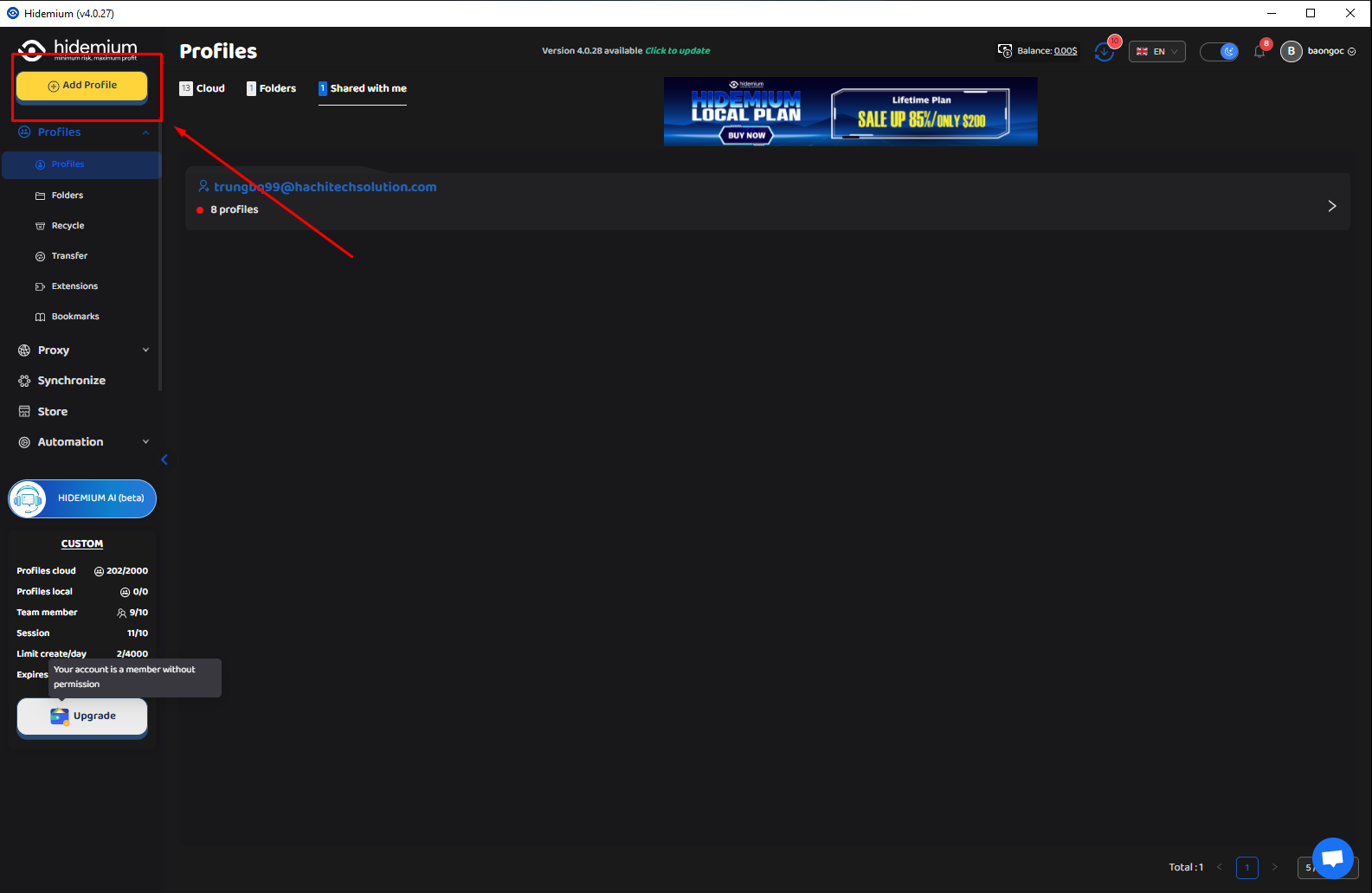
Click the "Add Profile" button at the top left corner of Hidemium's interface.
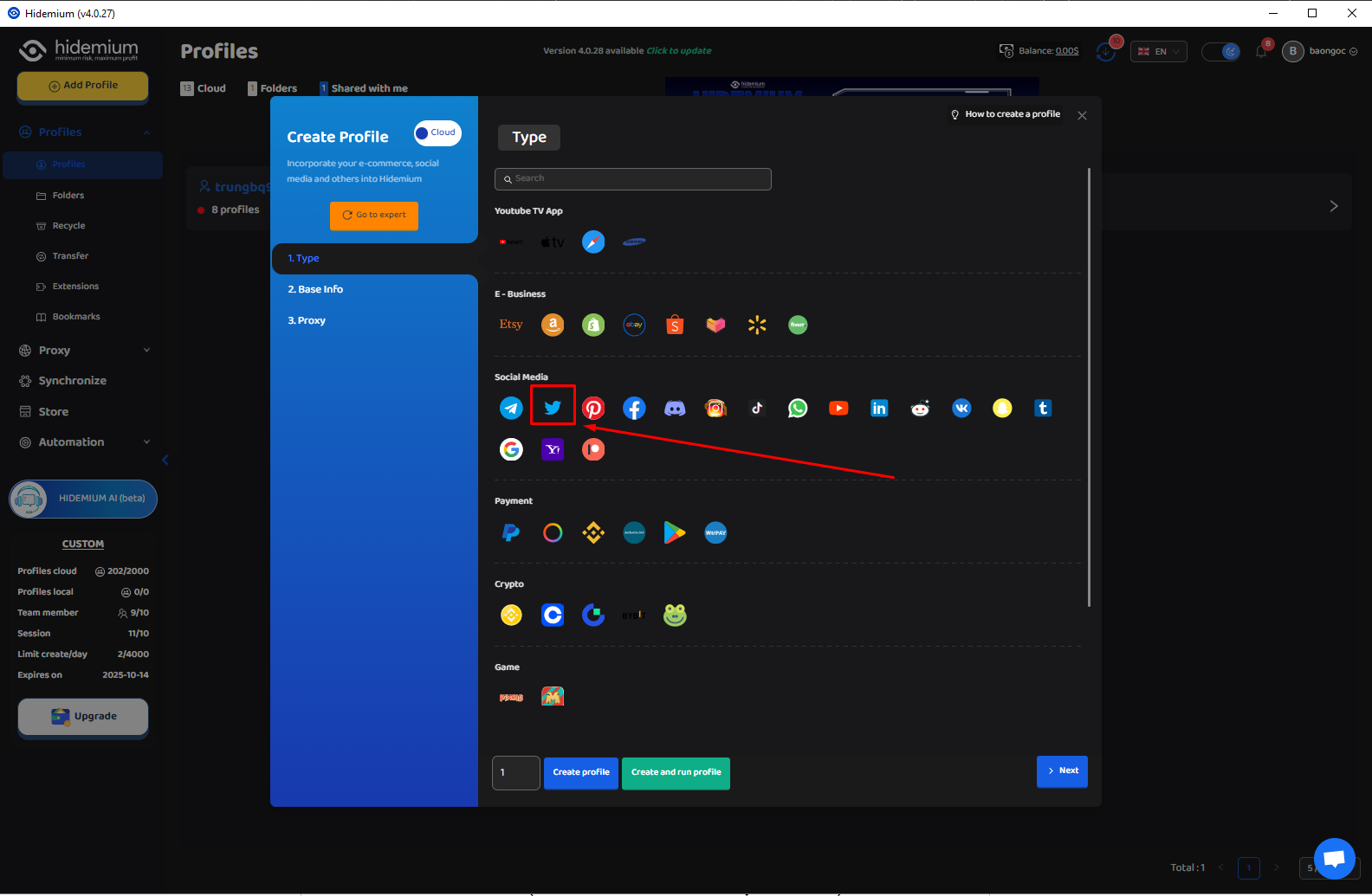
Under "Type," enter the X/Twitter URL (or icon) and fill in the necessary information to personalize the profile.
6.2.3 Log In and Automate Management Tasks
Once profiles are set, simply open the corresponding account through Hidemium to use it. Hidemium also supports automating management tasks like account care and interactions without manual input.
6.2.4 Flexibly Switch Between Profiles
When you need to access another account, just quickly switch to the relevant profile. This makes logging into multiple X/Twitter accounts seamless, avoiding conflicts or confusion.
7. Conclusion
Logging in to X/Twitter Web is straightforward: visit x.com, select Log in, and enter your account credentials. If login fails, check your password, browser data, verification status, and network before contacting X Support.
For marketers and e-commerce teams managing multiple legitimate accounts, keeping browser sessions, cookies, credentials, and account environments separated can reduce operational mistakes. Hidemium provides independent browser profiles, proxy configuration, and profile-management tools for these workflows.
Explore Hidemium for professional multi-account browser profile management.
🚀 Get started: Download Hidemium anonymous browser free — manage multiple X/Twitter accounts safely, reduce ban risk, perfect for marketers and e-commerce businesses.
8. FAQs About X/Twitter Web Login
8.1. How do I log in to X/Twitter Web?
Go to x.com, select Log in, and enter your email, phone number, or username and password. Complete any additional verification requested by X.
8.2. Why can’t I log in to X on the web?
Common causes include incorrect credentials, expired cookies, account verification requirements, browser issues, or temporary X service problems. Check your credentials first, then test cookies, browser, and account status.
8.3. Can I use multiple X accounts?
Businesses may operate separate X accounts for brands, markets, or teams, but every account must follow X Rules and platform-manipulation policies.
8.4. Is it safe to manage multiple X accounts in one browser?
Multiple accounts can be managed in one browser, but separate sessions or browser profiles may help avoid cookie, credential, and workflow mix-ups between accounts.
8.5. Can Hidemium be used for X/Twitter account management?
Hidemium can create separate browser profiles with isolated cookies, sessions, fingerprint settings, and proxy configurations. It is designed to help teams organize legitimate multi-account workflows, not bypass X policies.
Related Blogs

How to Run Multiple TikTok Accounts on One DeviceRunning multiple TikTok accounts on one device is a practical requirement for agencies, e-commerce sellers, content teams, franchise operators, and businesses managing several brands.One account may serve a local store, while another supports a different region, product line, client, or content strategy. The challenge is keeping every account[…]

AI visibility is now increasingly talked about measures in marketing and with an excellent reason. As more consumers are asking ChatGPT, Gemini, and Perplexity to provide product recommendations instead of typing an inquiry into Google, companies must be aware of whether AI instruments are actually talking about their brands. It's good to know that there is no need for an enterprise budget to[…]
 (1).png)
Dropshipping has become one of the most popular dropshipping business models due to its ability to reduce storage and operational costs. This is particularly appealing for new startups. But the key question is: which platform should you choose to start your business journey?Among the many platforms available today, eBay and Amazon are two prominent names, highly regarded for their professionalism[…]

The problem of ad account deactivated Facebook is no longer a rare thing. Due to many reasons, your account “evaporated” from this social networking platform. So what causes the Facebook ad account to be disabled? Follow the article to get the most accurate answer.Reasons Ad account deactivated FacebookAd account deactivatedHow would you feel if one day you couldn’t find your ad account anymore?[…]
.png)
In an era where artificial intelligence is increasingly developing, anti-bot systems and automatic detection mechanisms are also increasingly sophisticated, making finding a antidetect browser Being truly effective is more difficult than ever. However, Hidemium and MuLogin still stand out as two options worth considering with strong anonymity capabilities, helping to maintain stable operations[…]

MMO has never been an easy game—especially as platforms like Facebook, Google, Amazon, and eBay continue to tighten their algorithms. If you’re still in the habit of opening dozens of tabs in regular browsers such as Chrome, CocCoc, or Firefox to run jobs, you’re exposing yourself to a very high risk of mass account bans.This article will help MMO practitioners avoid costly losses caused by using[…]
