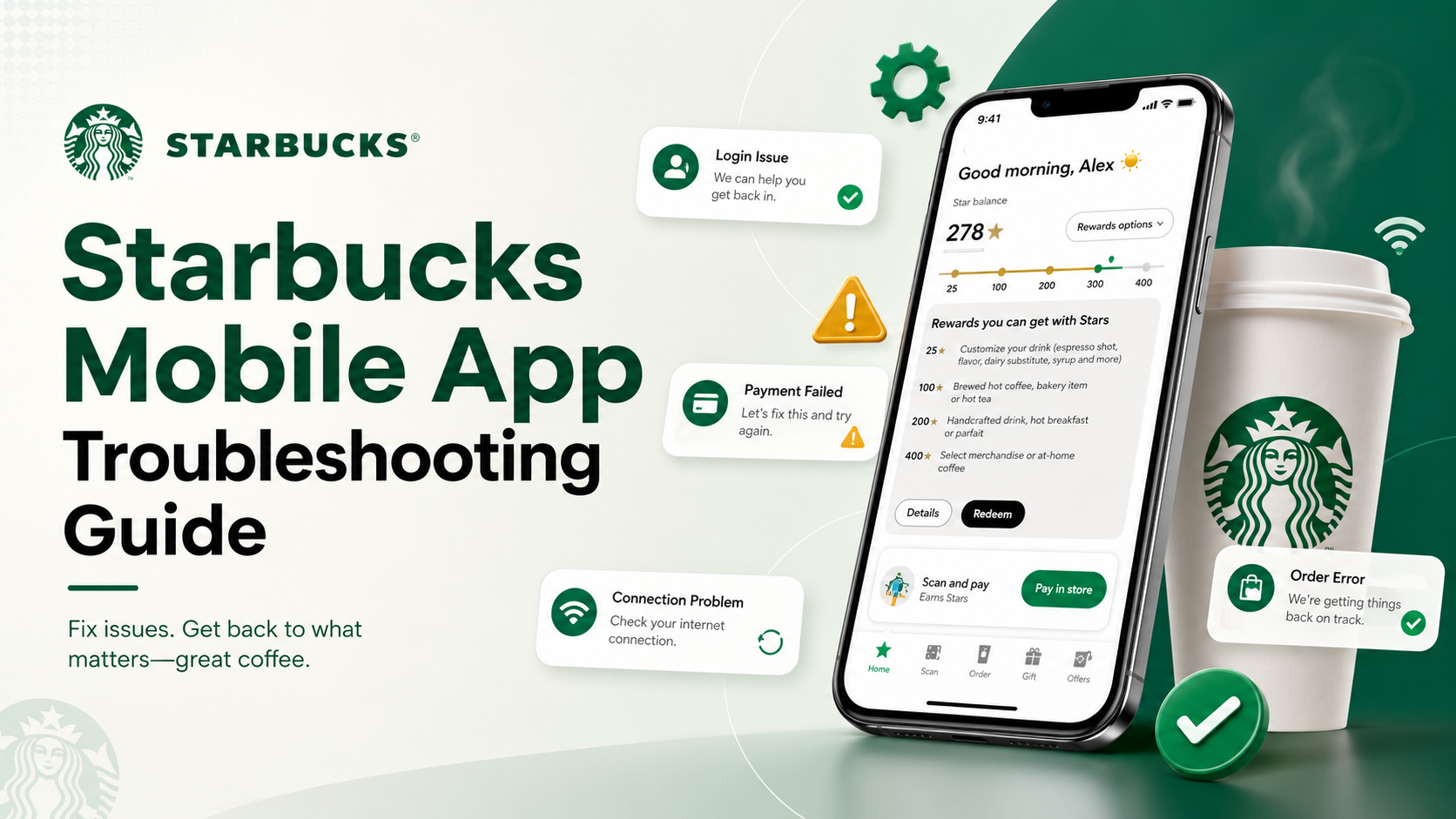

Starbucks Mobile App Not Working? Complete Troubleshooting Guide
Picture this: you're running late for work but desperately need your morning caffeine fix. You reach for your phone to place a quick mobile order — and instead of the familiar menu, you're greeted with a frozen screen, a payment error, or a mysteriously missing rewards balance. Few things are as frustrating as technology standing between you and your coffee.
If you're experiencing Starbucks app issues, you're far from alone. With millions of daily users, the platform occasionally runs into glitches, server overloads, and device-specific conflicts. This complete guide to Starbucks mobile app troubleshooting covers the most common problems and provides clear, step-by-step solutions to get your morning routine back on track.

General App Performance Issues and Crashes
Before jumping to specific ordering or payment glitches, it's worth addressing overall app stability. A sluggish or unresponsive app usually stems from fundamental device-level problems that are easy to fix.
Resolving Connection Errors
If you open the app and immediately see a Starbucks app internet connection error, the app is struggling to reach Starbucks' servers. Here's how to fix it:
- Toggle your connection: Switch between Wi-Fi and cellular data. Public Wi-Fi (including Starbucks in-store networks) can have captive portals that block app traffic until you accept terms via a browser.
- Check airplane mode: Make sure it's not accidentally enabled.
- Force-close and relaunch: Fully closing and reopening the app forces a fresh server connection.
Stopping App Crashes on Android and iOS
A frequently reported issue is the Starbucks app crashing on Android — usually after an OS update or a failed automatic app update. The fix is to clear the app's cached data.
Here are the steps to clear Starbucks app cache on Android:
- Open Settings → Apps (or App Management).
- Find and tap Starbucks.
- Go to Storage & Cache → tap Clear Cache.
- Avoid "Clear Data" on first attempt — that will log you out.
- Relaunch the app.
For iOS users, there's no direct cache button. Instead: go to Settings → General → iPhone Storage → Starbucks → Offload App. This clears temporary data while keeping your login credentials intact.

Overcoming Ordering and Location Glitches
Mobile Order & Pay is one of the app's best features — but when it fails, it can throw off your entire morning. Here's how to diagnose and fix the most common ordering issues.
Why the App Won't Let You Order
If you're wondering "why is my Starbucks app not letting me order?", the root cause is usually store-specific rather than an app-wide failure:
- Inventory sync issues: If a store has run out of an ingredient (like oat milk or a seasonal syrup), that item gets disabled. Remove it from your cart and try again.
- Store operating hours: The location may be about to close, or it may have paused mobile orders due to high in-store volume.
Fixing Unavailable Mobile Order Locations
When a specific location has disabled mobile ordering, the easiest fix is to switch pickup locations. Tap the map icon, zoom out, and select the next nearest Starbucks. Keep in mind that licensed stores (inside Target, airports, or grocery chains) often have separate systems and may not support mobile ordering at all.
Store Locator Not Loading
If the Starbucks app store locator isn't working, the app has likely lost access to your device's GPS. Check your phone's privacy settings and ensure Starbucks has "Precise Location" permission enabled. If the map still won't load, type your zip code manually instead of relying on the auto-locate feature.

Resolving Payment and Digital Wallet Troubles
You've built your perfect custom order — now the digital wallet won't cooperate. Payment issues are among the most common Starbucks app complaints, but most are quick to resolve.
Payment Method Not Working
If your Starbucks app payment method isn't working, the usual culprits are an expired card or a bank fraud flag:
- Update billing details: Navigate to the "Scan" tab → manage payment methods → confirm the billing zip code matches your current bank statements.
- Remove and re-add: Delete the card entirely and re-enter the details from scratch.
Gift Card and Apple Pay Issues
If you're getting an error when adding a gift card, double-check the 8-digit PIN under the scratch-off foil — it's easy to confuse "O" with "0" or "I" with "1". Also confirm the card hasn't already been linked to another account, as Starbucks gift cards can't be shared across multiple digital accounts once activated.
For Apple Pay issues, the fix is usually a tokenization error. Go to iPhone Settings → Apple Wallet → remove and re-add your primary card. Then return to the Starbucks app and retry the reload.
Balance Not Updating
If your balance shows $0 after a reload, it's a visual sync glitch — your money is safe. To force a refresh:
- On the app's home screen, swipe down firmly to trigger a manual refresh.
- If that doesn't work, log out and log back in. The fresh server connection will pull your correct balance.

Account, Login, and Rewards Troubleshooting
Your Starbucks account holds your Stars, payment methods, and order history. Being locked out is stressful — but most login issues have straightforward fixes.
Fixing Login Problems
If you can't log in, the first thing to check is whether you're connected to a VPN. Starbucks' security systems frequently block login attempts from known VPN IP addresses to prevent fraud. Disable your VPN and try again. If your password isn't working, use the "Forgot Password" link and check your spam folder — Starbucks reset emails are often filtered by Gmail and Outlook.
For users who manage multiple apps and accounts across different platforms, a tool like Hidemium can be useful — it's an antidetect browser that lets you keep separate browser profiles with isolated cookies and login environments, so your personal and work accounts never interfere with each other.
Missing Stars and Rewards
If your Stars aren't showing up after a purchase, don't panic. Starbucks officially states that Stars can take up to 24 hours to appear. If it's been longer than that, check the "History" tab to confirm the purchase was charged to your Starbucks Card and not processed as a guest checkout.
Reinstalling Without Losing Your Stars
Many users hesitate to reinstall the app out of fear of losing rewards. You won't. Your Stars, gift card balances, and order history are stored on Starbucks' secure cloud servers — not on your device. Simply delete the app, reinstall it from the App Store or Google Play, and log back in. Everything will be exactly where you left it. For a broader look at how to keep your digital accounts safe and private, see our secure browser guide.
Overcoming In-Store Scanning Problems
The app works perfectly — until you reach the register and the barcode won't scan. Here's how to troubleshoot the Starbucks app scanner at the register:
- Maximize screen brightness: Optical scanners need strong contrast to read barcodes. A dim screen is the most common cause of scan failures.
- Turn off dark mode: An OS-level dark mode setting can occasionally invert barcode colors, making them unreadable.
- Clean your screen: Smudges or cracks over the barcode area — especially on screen protectors — can scatter the scanner's laser.
- Ask for manual entry: Tap on the card in the app to find your 16-digit Starbucks Card number, and read it aloud to the barista. They can type it directly into the register.

When to Contact Starbucks Support
If you've cleared your cache, toggled your Wi-Fi, updated your payment methods, and reinstalled the app — and you're still stuck — it's time to contact official Starbucks support. Persistent issues are worth escalating, especially if they involve missing Stars or an incorrect charge. For broader best practices on keeping your apps and accounts secure, the tips in our guide on managing your account apply equally well to any mobile platform.
To reach support: tap the profile icon in the top right corner of the app → scroll to "Help & Terms" → select "Customer Service." From there, you can start a live chat or find the 1-800 support number. Have ready: your device type, the exact error message, and a list of the steps you've already tried.
Conclusion
Most Starbucks app problems have simple, quick fixes once you know where to look. Whether it's clearing your device cache, refreshing your balance with a swipe, switching your pickup location, or simply disabling a VPN before logging in — the solutions are usually just a few taps away.
The next time your screen freezes or an error pops up, come back to this guide, run through the relevant steps, and you'll be back to ordering your favorite customized drink in no time.
Related Blogs

Proxyium is a free browser-based web proxy that allows users to route web traffic through a remote server, hide their public IP address, and access some region-restricted websites without installing additional software. This tool is best suited for light, low-risk browsing rather than long-term multi-account workflows.This Proxyium review explains how the Proxyium web proxy works, its key[…]
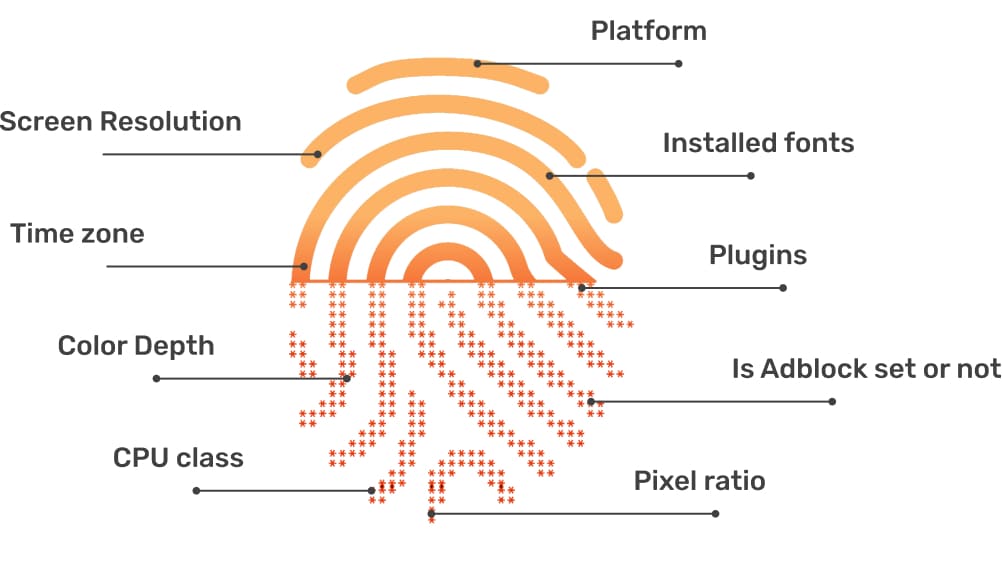
In the digital age, online user tracking has become commonplace, conducted for both positive and negative reasons. According to a report by Ghostery—a renowned provider of free software—over 79% of websites with unique domains use tracking tools to gather user data. Among these methods, canvas fingerprinting has emerged as a popular and effective technique. This article by Hidemium will help you[…]

BrowserLeaks is a browser privacy testing website that shows what information your browser exposes to websites, including IP data, WebRTC information, browser configuration, Canvas/WebGL signals, and other fingerprinting attributes.A browser privacy test can help you identify potential browser data leaks and understand how browser fingerprinting may be used to distinguish one browser environment[…]

Which is the better choice for your online business—VPN or Proxy? While many people mistakenly believe that simply using a VPN to change their IP address is enough for security, major platforms can still easily detect shared IP ranges and blacklist associated accounts. The difference between data encryption (VPN) and dedicated IP rotation (Proxy) is often the line between smooth operations and[…]
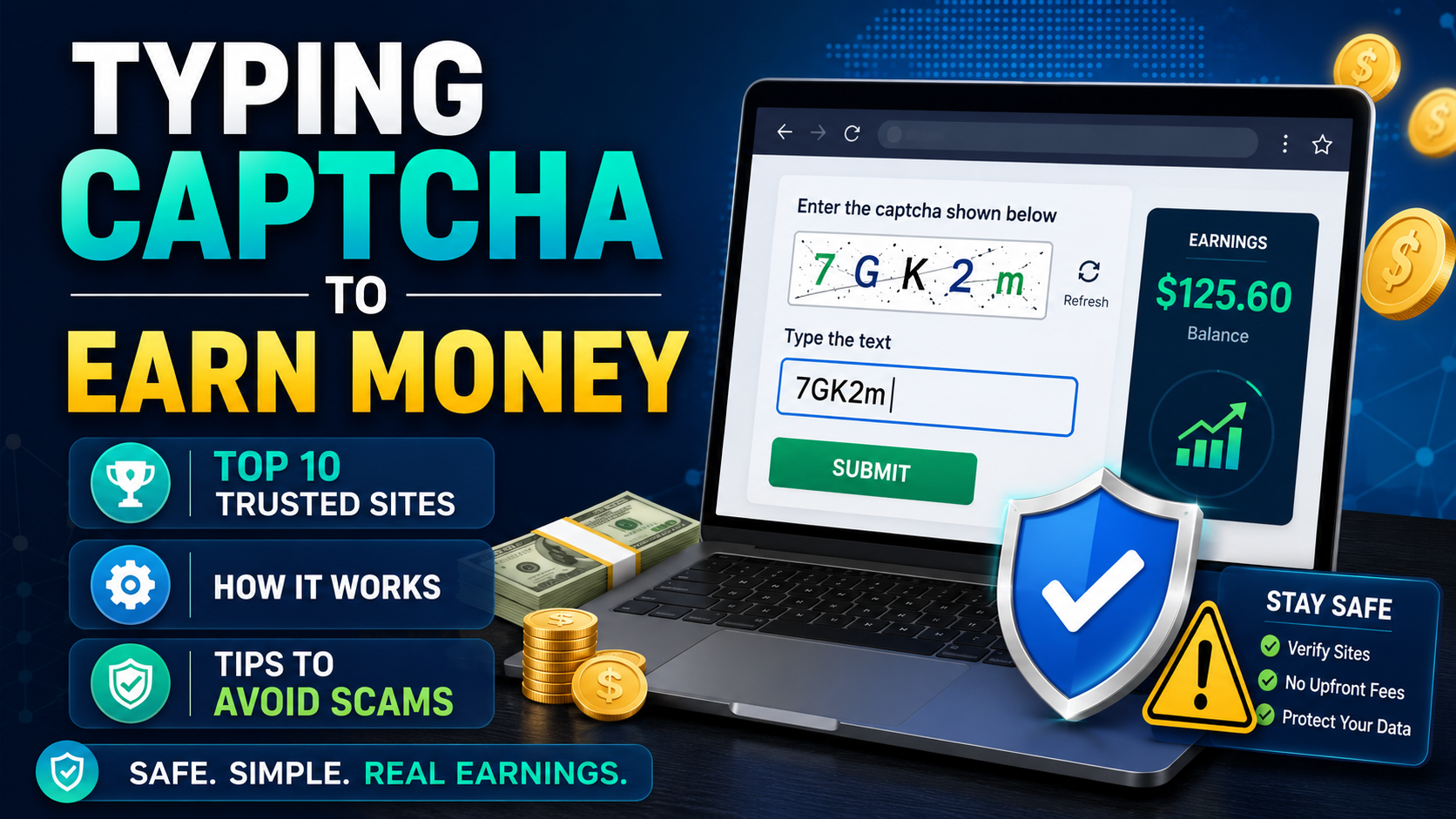
1. What is Captcha Typing for Money?Captcha (Completely Automated Public Turing test to tell Computers and Humans Apart) is a security tool used to distinguish real users from bots, by requiring them to re-enter distorted characters displayed in an image.Typing Captcha to earn money is the job of re-entering these characters on online platforms and receiving corresponding remuneration. After[…]
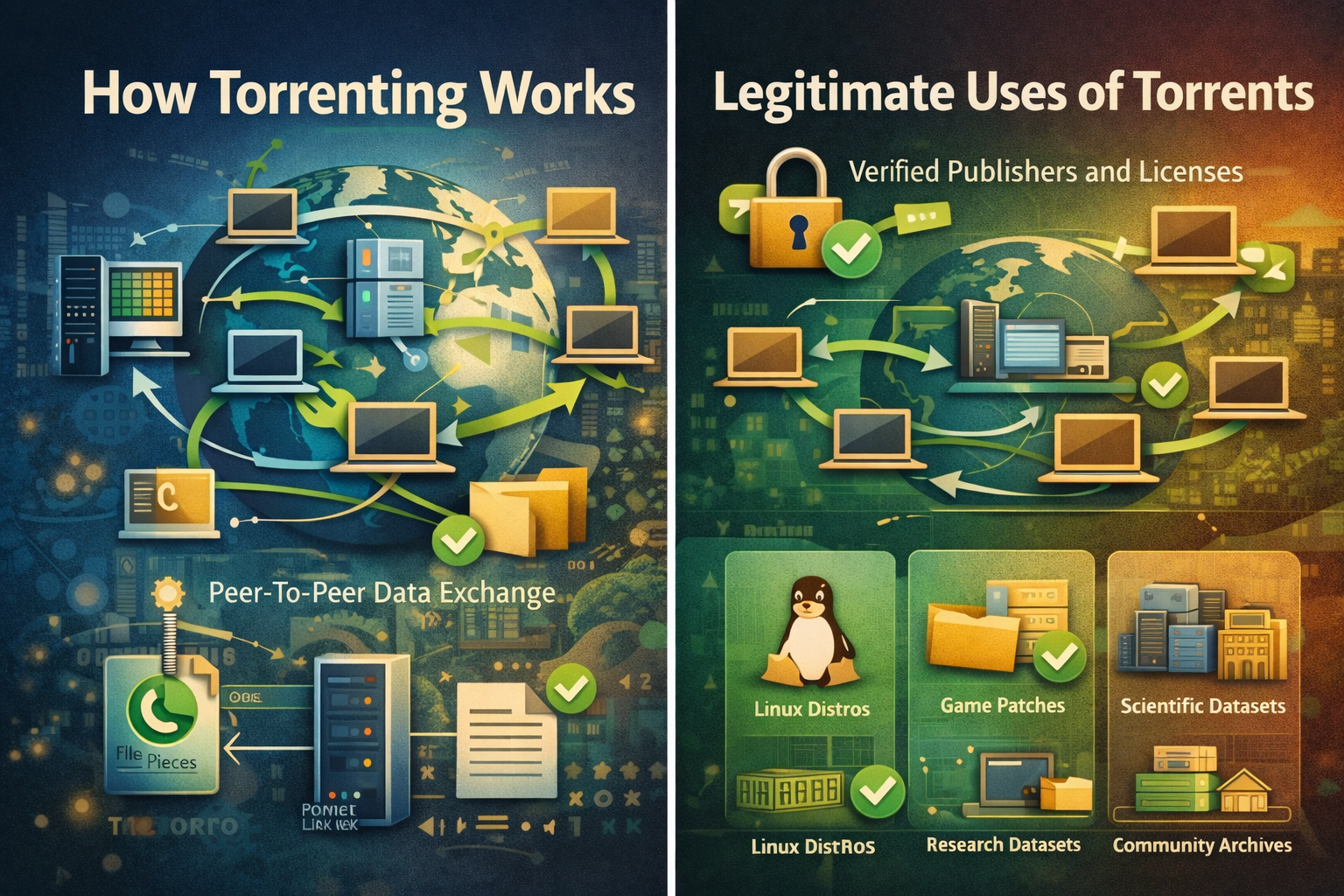
Torrenting is a peer-to-peer method for distributing large files, where many participants exchange small pieces concurrently so downloads and uploads proceed efficiently without relying on a single central server.Clear rules, reputable sources, and routine checksums make torrenting predictable for legitimate content such as open-source software, public datasets, and authorized media that rights[…]
