
Watching videos on Facebook has become a familiar entertainment activity for many users. However, spontaneous video errors can make the usage experience frustrating and disruptive. In the article below, Antidetect Browser Hidemium will analyze the reasons why Facebook videos don't run automatically and guide you through 4 effective, easy-to-implement solutions right on your phone or computer.
1. Reasons why Facebook videos do not automatically play
Videos on Facebook that don't run automatically usually come from the following reasons:
Weak or unstable Internet connection: When the network speed is slow or unstable, Facebook will automatically suspend the automatic video playback function to reduce data consumption.
Power saving mode is on: Many mobile devices have a power saving mode, which limits features like video autoplay to save system resources.
Facebook app is buggy or outdated: If you're using an outdated version of Facebook, some features may not work correctly.
Autoplay option has been disabled: Some users accidentally or intentionally turned off the video autoplay function in settings, resulting in videos not playing automatically.
>>> Learn more: TOP 10+ most effective and free Facebook SEO software in 2025
2. How to fix Facebook video error not running automatically
Here are 4 simple steps to help you handle this situation quickly:
2.1 Check Internet connection
First, make sure your device is connected to stable Wi-Fi or has enough mobile data. A slow connection or network outage will cause Facebook to temporarily stop playing videos to save bandwidth.
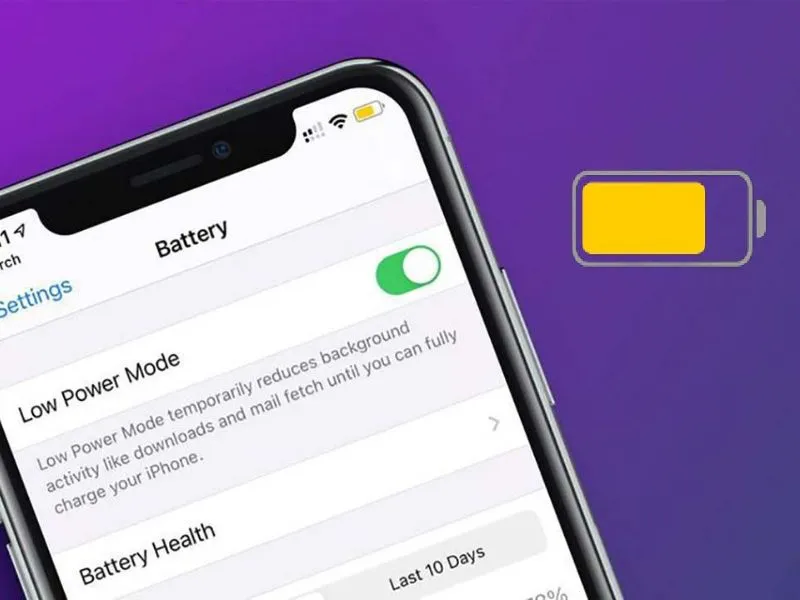
2.2 Turn off battery saving mode
Battery saving mode may limit app background activity. You should access the battery settings on your device and switch back to normal usage mode. This helps Facebook and other apps work smoother, including video autoplay.
2.3 Update Facebook app
Old application versions often contain errors and are not optimized. You should go to the App Store (for iPhone) or Google Play Store (for Android) to update Facebook to the latest version. Updating not only improves performance but also helps fix errors like videos not playing automatically.
2.4 Check and re-enable the video autoplay feature
Go to Settings & privacy > Settings > Media and contacts > Autoplay and make sure this option is turned on.
3. How to turn on spontaneous video mode on Facebook
If you're experiencing Facebook videos not playing automatically, it's most likely because the autoplay feature has been disabled. Don't worry, Hidemium will guide you on how to turn Facebook's self-playing video mode back on in the most detailed and easy-to-implement way on both phones and computers.
3.1 Instructions for turning on Facebook videos to play automatically on your phone
Enabling Facebook videos to automatically play on your phone will help improve your browsing experience more quickly. Depending on the device you are using, refer to the appropriate instructions below:
3.1.1 How to enable autoplay of Facebook videos on Android
For Android users, follow these steps:
Step 1: Open the Facebook application → Click the three dashes icon → Select "Settings & privacy" → "Settings" → Select "Media files".
Step 2: In the "Autoplay" section, select one of the following three options:
• When using mobile data and Wi-Fi
• Only when connected to Wi-Fi
• Never autoplay
3.1.2 How to turn on auto-play videos on Facebook iPhone (iOS)
If you use an iPhone device, follow these steps:
Step 1: Access Menu on personal Facebook → Select "Settings & privacy" → “Settings”
 B1.webp)
Step 2: Go to “Videos and photos”
Step 3: Tap "Autoplay" and select the desired mode:
• When using mobile data and Wi-Fi
• Only when Wi-Fi is available
• Never spontaneous
 B4.webp)
3.2 Instructions for turning on Facebook video autoplay mode on your computer
For Facebook desktop users, you can enable video autoplay in two ways:
3.2.1 Turn on Facebook video autoplay in Settings
Step 1: Access Facebook → Click on the arrow icon in the right corner → Select "Settings & privacy" → “Settings”
Step 2: In the list on the left, select “Video”
Step 3: In the "Autoplay video" section, turn on this mode
3.2.2 Install extension to play back Facebook videos
If you want a more advanced experience, you can install an Extension that supports automatic video playback:
Step 1: Download the Video Loop for Facebook utility
Step 2: Unzip the downloaded file
Step 3: Open Chrome browser → Click the three dots icon → More tools → Extensions
Step 4: Turn on “Developer Mode”
Step 5: Click "Download unpacked utility" → Select the folder containing the utility → Complete installation
✅ Useful tip: Re-enabling the spontaneous video feature not only helps you follow content more easily, but also supports a smoother experience of watching livestreams, ads or entertainment content on Facebook.
>>> Learn more: What is Facebook Ad Library? Main features and usage
4. Some frequently asked questions related to the autoplay video feature on Facebook
Besides the common question "Why doesn't Facebook video run automatically?", users also encounter many other problems related to this feature. Below are frequently asked questions and instructions on how to handle them effectively:
4.1 Autoplay mode has been turned on but the video still doesn't play, what is the reason?
If you've enabled autoplay but the video isn't working, follow these steps: log out of your Facebook account, update the app to the latest version, then log back in and test the feature again. Additionally, make sure your network connection or mobile data is stable so the video can play normally.
4.2 The video plays automatically but there is no sound, what should I do?
In case the video automatically plays but has no sound, you should check to see if the device is in silent mode or not. Also, try restarting your phone to refresh the system and fix the problem quickly.
4.3 Does turning on video autoplay mode consume network data?
The answer is YES. When autoplay is enabled, Facebook will use your network data to download videos. The amount of data consumed depends on the time you watch the video: if you just skim through it, it consumes little, but if you stop and watch longer, data usage will be higher.
>>> Learn more: How can I manage multiple Facebook ad accounts at once?
Through this article, Hidemium has helped you answer the question "Why don't Facebook videos play spontaneously?" along with common situations when using the autoplay feature. Hope the above information will help you fix the problem effectively. If you have any questions or need technical support, please contact the Hidemium team via Telegram, Website or Facebook Messenger for the fastest and most accurate support
FAQ
Why won’t Facebook videos autoplay even though I’ve enabled autoplay?
The most common causes are a weak internet connection, a Facebook app issue, or battery-saving mode restricting background activity. Check your internet connection, disable battery saver, update the Facebook app, then log out and back in to try again.
How do I enable Facebook video autoplay on an Android phone?
Open the Facebook app and go to Menu → “Settings & privacy” → “Settings” → “Media files” → “Autoplay.” Choose “When using mobile data and Wi-Fi” or “On Wi-Fi only,” depending on your data usage preferences.
How do I enable Facebook video autoplay on iPhone (iOS)?
Go to Facebook Menu → “Settings & privacy” → “Settings” → “Videos and photos” → “Autoplay.” Choose the option that suits you: mobile data and Wi-Fi, Wi-Fi only, or turn autoplay off completely if you want to save bandwidth.
Facebook videos autoplay but have no sound. How can I fix this?
Check whether your phone is in silent mode, the media volume is turned down, or the speaker icon on the video is muted. You can also try restarting your phone to refresh the system and the Facebook app.
Does enabling Facebook video autoplay use a lot of mobile data?
Yes. When autoplay is enabled, Facebook automatically loads videos as you scroll past them. If you scroll quickly, data usage may be low, but if you stop to watch for longer or view many HD videos, data consumption can increase significantly, especially on 4G or 5G.
Related Blogs

Are you starting your content creation journey and struggling to get free YouTube views? Getting your first 1,000 views can be a big challenge, especially if you don’t want to run ads or use support tools. However, it is completely possible to get free YouTube views without using tools and without running ads if you apply the right strategy. In this article, you will discover effective, safe and[…]

Here's a number that should keep product managers up at night: 62.54% of global website traffic now comes from mobile devices. Not desktops. Not tablets. Phones.And if you're building anything for the web in 2025, that stat changes everything about how you approach development and testing. The desktop-first mentality that dominated web development for two decades? It's basically over.Why Mobile[…]

In the process of doing business online, many sellers face the problem of accounts being repeatedly suspended even though their content does not violate any rules and their ads fully comply with platform policies. This leads to business disruptions, declining revenue, and major difficulties in scaling operations. The root cause lies in poor digital identity management.That is why more and more[…]

Google Chrome is a popular browser but not the best choice when you need Manage Multiple X Accounts (Twitter) at the same time. In this article, we will explore the limitations of Chrome, the role of browser fingerprint, and why antidetect browser Hidemium is a superior solution for creating and operating multiple secure accounts.1. Is it possible to create multiple X accounts on[…]
A Suspended Google Adwords account adversely affects the work and business performance of the business when interrupting the advertising campaign. So how to fix and limit the suspension of your account in Google Adwords advertising? Let’s find out through the article!Account suspension due to related errors violates Google Ads policies1. Dodge the systemModify the ad element (text, video, image,[…]
Selling on major e-commerce platforms can generate enormous revenue, but it also comes with extremely strict compliance and review policies. Even a minor slip, such as a leak of device-related data, can lead to account suspension. Let’s explore how to create a clean operating environment for eBay/Amazon using Hidemium in the article below.1. Why is it necessary to create a clean environment when[…]
