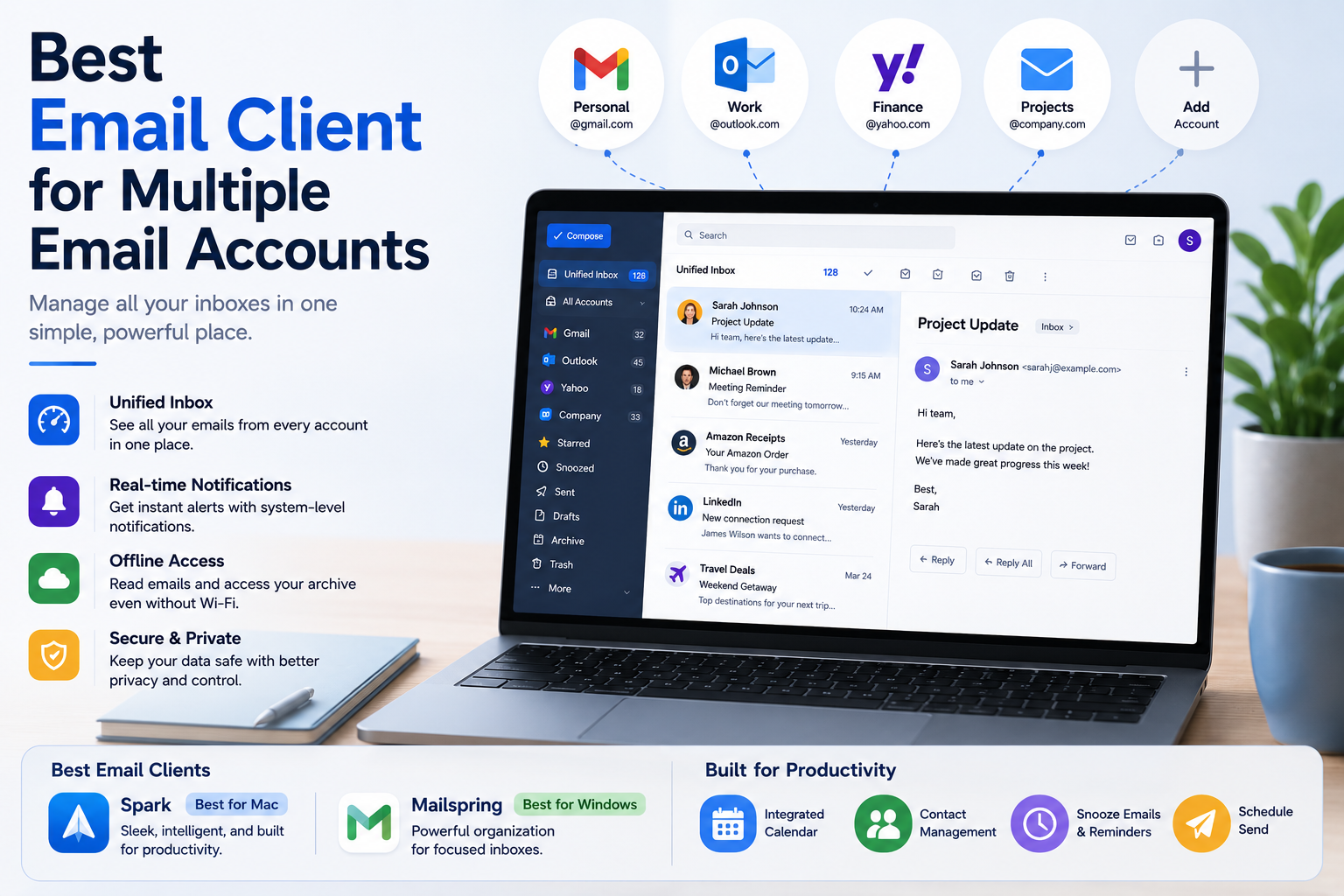

Best Email Client for Multiple Email Accounts
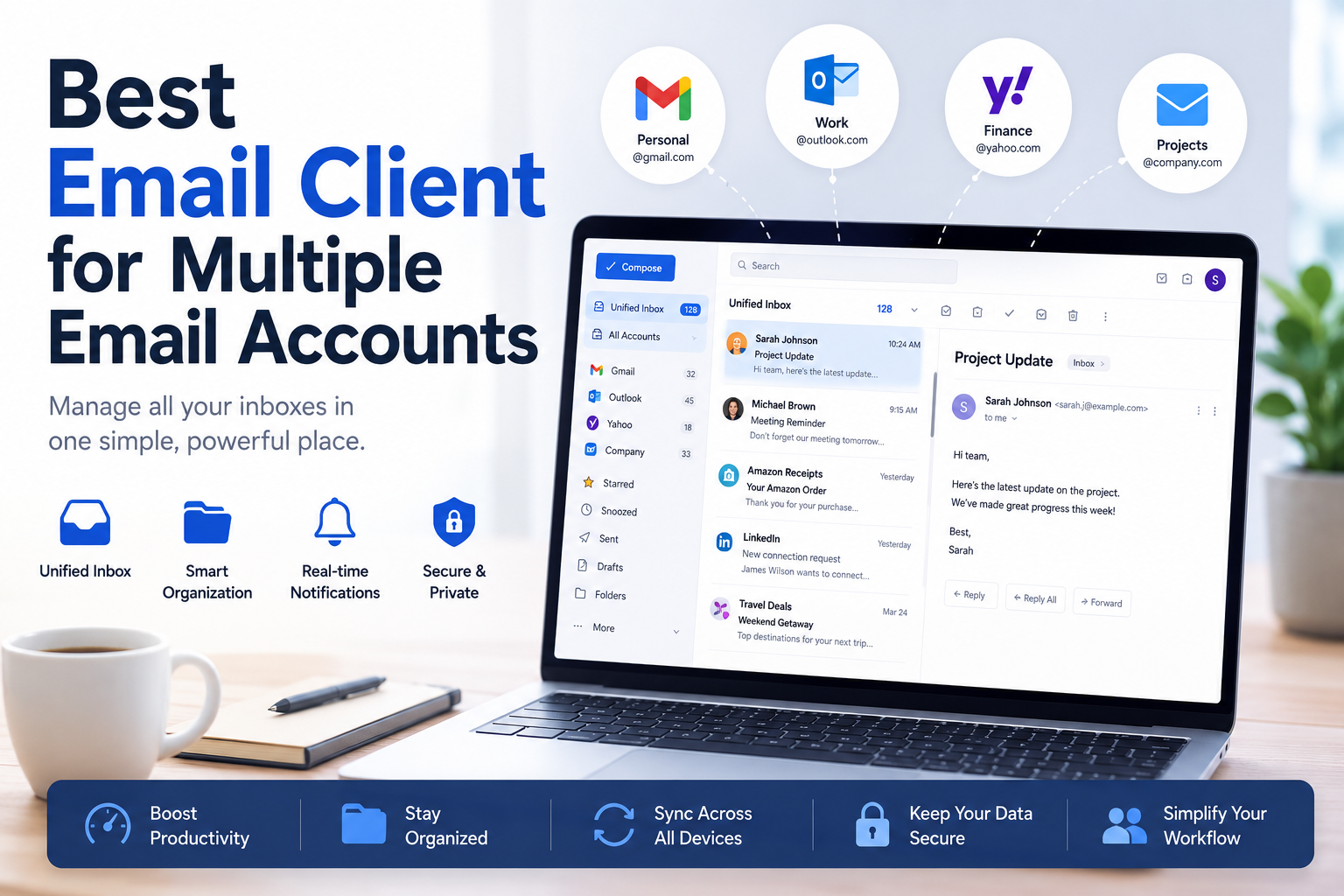
The Hidden Productivity Cost of Managing Multiple Inboxes
You open your laptop, stare at a row of pinned browser tabs, and immediately feel a wave of dread. Industry data reveals the average worker loses nearly a month of productive hours each year simply context-switching between different websites. Constantly clicking between your personal Gmail, work Outlook, and side-hustle address creates a hidden hum of stress with every unpredictable webmail notification ping.
How a Desktop Email Client Simplifies Your Workflow
Relying on a web browser for messages is like running to scattered post offices across town just to check your mail. Upgrading to a dedicated application installed directly on your computer—known as a desktop email client—changes this entirely. Think of this software as a customized physical desk where all your letters are neatly delivered to one single spot, regardless of which address they were sent to.
Finding the best email client for multiple email accounts isn't just about reading messages faster. By switching to one of the top email apps for productivity, you can finally transform that chaotic browser experience into a calm, unified command center, significantly reducing the mental weight of managing three or more inboxes.
Is It an Address or an App? The Secret to Owning Your Digital Mailbox
Most of us assume an "@gmail.com" address means we must use the official Gmail app. However, there is a massive difference between your email provider (the invisible postal service delivering your messages) and your email client (the digital desk where you organize them). You can seamlessly pair your current address with the best email software available, instantly upgrading your daily workflow without having to change your contact information.
Curious about your own setup? Use this simple checklist to identify your foundation:
- The Provider: Look at the end of your address (like @yahoo.com)—this is your delivery service.
- The Client: Identify the app you click to open messages. You can swap this viewer anytime without migrating data between different mail platforms.
- The Sync: Delete a message on your phone and watch it vanish on your computer. Modern apps automatically handle the complex job of syncing IMAP and POP3 settings in the background.
Since your app is just a remote control, you are never trapped using a cluttered interface. By routing multiple addresses into one central application, you unlock the power of a unified inbox and a cure for account overload.
The Power of One Front Door: Why Unified Inboxes are the Cure for Account Overload

How a Unified Inbox Simplifies Multiple Email Management
Do you find yourself clicking between multiple browser tabs just to check your mail? Figuring out how to manage multiple accounts in one place is the secret to digital peace of mind. Instead of walking to different houses to check different mailboxes, a unified inbox for Windows and Mac acts like one front door. Messages pour into a single "All Inboxes" view, letting you see everything at once.
Using Smart Folders and Productivity Features to Stay Organized
After funneling mail into one spot, organizing messages with smart folders saves hours of manual sorting. These automatically group specific emails together regardless of which address they originally came from. Every user should create these four distinct setups:
- Receipts: Catch online purchases and invoices instantly.
- Attachments: Group vital documents, like that missing PDF from your accountant.
- Unread: Ensure crucial updates never get buried.
- Social: Quarantine newsletters away from your primary communications.
Taking control of this centralized view means improving workflow with snooze and schedule-send features. If an email needs attention but you are too busy right now, simply hit "Snooze" to temporarily hide it until tomorrow, clearing your mental clutter without deleting messages. This highly organized, distraction-free environment highlights the distinct advantages a dedicated program has over a standard browser tab.
Desktop vs. Webmail: Why a Dedicated Program Beats a Browser Tab Every Time
Performance and Productivity Benefits of Desktop Email Clients
Relying on a browser tab for daily messages is a recipe for digital exhaustion. Every open tab drains your computer's memory, slowing everything down. Moving to a dedicated app solves this by acting as lightweight mail software for slow computers. Instead of competing with fifty other tabs and various third-party extensions and plugin support scripts running in the background, a standalone program uses far less energy while keeping your workspace clean.
Beyond performance, installing a real app transforms how you interact with new mail. You finally get reliable system-level notifications—native alerts built right into your computer that pop up even when your browser is closed, completely eliminating "Notification FOMO." Furthermore, desktop programs offer offline caching. Think of this as your computer automatically downloading a seamless backup of your inbox, ensuring you can still read important emails or find flight confirmations even when the Wi-Fi drops.
Desktop Email Client vs Webmail: Key Differences Explaine
Review this simple breakdown of desktop vs. webmail pros and cons:
| Feature | Webmail (Browser Tab) | Desktop Client (App) | | :--- | :--- | :--- | | Speed | Heavy on computer memory | Fast, focused performance | | Offline Access | Broken without Wi-Fi | Archive always available | | Notifications | Easily missed | Dependable native pop-ups | | Privacy | Frequent ad tracking | Tighter personal data control |
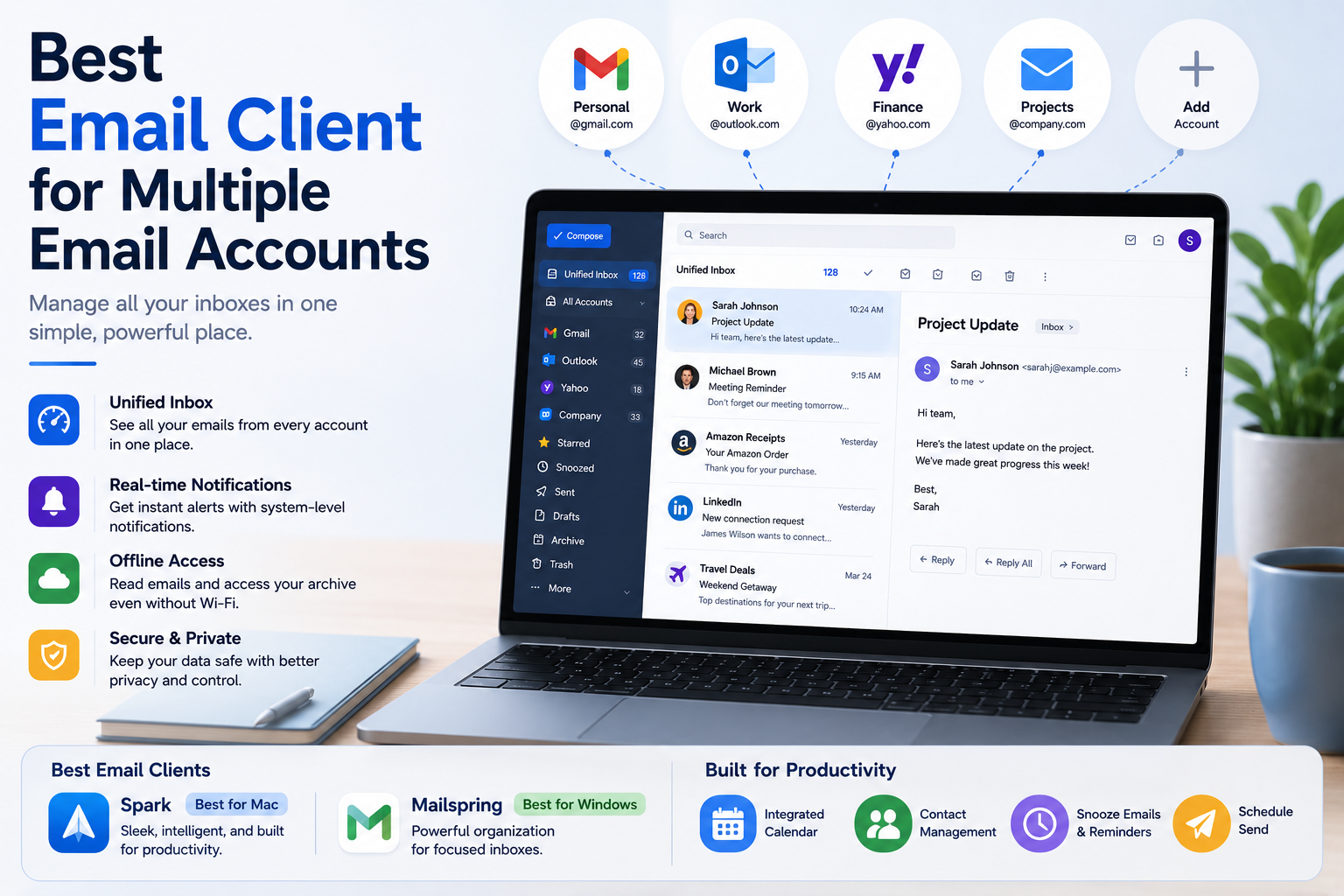
Moving to a dedicated app feels like finally cleaning off your messy physical desk. Instead of staring at blinking ads and fifty open browser tabs, you are greeted by a calm, focused workspace designed entirely around your messages.
Best Email Clients for Mac and Windows Users
Finding the right fit depends on your style, but two choices make setup incredibly painless. If you are a highly visual person wanting sleek design, Spark is arguably the best email client for Mac. If you crave deep organization, Mailspring shines as the best email client for Windows. You can easily connect five or more accounts in one session using secure multi-account authentication (OAuth). This simply means a familiar, safe window asks for your normal password to grant access, letting you completely skip the nightmare of typing in complex server settings.
Integrated Calendars and Contact Management Features
Beyond sorting messages, these tools rescue you from constantly shuffling between different apps just to check your schedule. Both feature seamless integrated calendar and contact management right inside the main window. When a client proposes a Tuesday meeting, you can check your availability and accept the invite without ever leaving your inbox.
While these user-friendly programs easily conquer everyday email chaos, some users prioritize absolute data control above all else through open-source alternatives.
Privacy, Freedom, and Linux: The Best Open Source Alternatives
Why Open Source Email Clients Offer Better Privacy
When companies offer a free app, they often pay for it by scanning your newsletters for targeted ads. If that makes you uncomfortable, community-built software treats your inbox like a private vault. Mozilla Thunderbird ranks as the best email client open-source communities have ever built, and is widely considered the best email client Linux users recommend. Because the code is public and non-profit, its only goal is protecting data.
Essential Thunderbird Privacy Settings to Enable
Taking back your privacy starts by stopping "tracking pixels"—invisible images hidden in emails telling marketers exactly when you opened their message. Thunderbird shines among privacy-focused communication tools because it blocks these snoops by default. To maximize your digital shield, verify these three settings:
- Block remote content: Ensure "Allow remote content" remains unchecked.
- Disable telemetry: Uncheck "send technical data" to keep usage private.
- Stop read receipts: Disable “Tell me when someone reads a message.”
Using End-to-End Encryption for Secure Email Communication
For sensitive conversations, easily pair Thunderbird with secure providers using end-to-end encryption. This works like sending a locked safe through the mail instead of a transparent postcard, meaning even the app makers cannot peek inside. This robust security naturally pairs with similar control on your smartphone.
Mobile Mastery: Managing 5+ Accounts from the Palm of Your Hand
Best Email Apps for iPhone and Android Users
Stepping away from your desktop shouldn't mean returning to smartphone chaos. If you hate tapping between separate work and personal inboxes, finding the best email client for iPhone or the best email client for Android brings immediate relief. These top-tier apps gather everything into one unified feed and seamlessly sync "Snoozed" messages between your phone and laptop. Spark, for instance, frequently ranks as the best email client iOS users choose to easily replace Apple's clunky default app.
Custom Swipe Gestures for Faster Email Management
To triage 50 emails in five minutes, configure these custom swipe gestures:
- Short swipe right: Archive (for receipts you might need later).
- Long swipe right: Delete (for obvious spam).
- Short swipe left: Snooze (to pop back up on your computer tomorrow).
Treating your inbox like a digital conveyor belt turns overwhelming clutter into a satisfying game, letting you sort messages while waiting for coffee. Integrating this into your workflow takes only a few minutes.
Your 5-Minute Migration Plan: From Inbox Chaos to Calm
Simple Steps to Set Up Your Unified Inbox
You no longer have to treat your inbox like a chaotic junk drawer. By upgrading from a browser to a dedicated app, you can finally experience that calm "Inbox Zero" feeling without actually deleting a single email. If you use a Mac, choose Apple Mail; Windows users should grab Outlook; and if you need free mail programs for personal use, Thunderbird is perfect. Ready to set up your best email client? Follow this quick start checklist:
- Choose your app based on your specific device (Windows/Mac/Linux).
- Log in to your existing addresses.
- Enable the "Unified Inbox" to master how to manage multiple accounts in one place.
- Close those old browser tabs forever.
Try checking your mail this new way tomorrow morning. Instead of feeling overwhelmed by digital clutter, you’ll immediately notice a comforting sense of control and hours of saved time.
Related Blogs

Whether you are a gamer looking to coordinate raids, a student collaborating on a group project, or a hobbyist searching for like-minded individuals, Discord has become the ultimate digital gathering place. The best part? Getting started costs absolutely nothing. Securing a free Discord account is your gateway to thousands of vibrant communities, crystal-clear voice chats, and seamless text[…]

How to Turn Your Phone into a Passive Income Machine The Untapped Potential in Your Pocket That smartphone you're constantly checking? It could be making you money right now. While you're scrolling through social media or letting it sit idle on your desk, you're missing out on legitimate income opportunities that require almost zero effort.Here's the thing most people don't realize: your phone is[…]
To turn off fingerprint unlock for Chrome passwords, open Google Password Manager or your device’s biometric security settings and disable fingerprint, Face ID, or Touch ID authentication where available. Chrome will then use another supported device authentication method, such as a PIN, password, or passcode.In this article, Hidemium will guide you in detail on how to disable fingerprint[…]
.png)
In the context of rapidly advancing technology, mastering how to check Proxy and Firewall will help users protect their information security and optimize their web browsing experience. Let's join Hidemium to explore simple methods for checking Proxy and Firewall through the detailed instructions in the article below.How to Check Proxy and Firewall on Win 10, Win 11Proxy and Firewall are two[…]
.png)
In today's challenging Digital Marketing environment, protecting accounts and safeguarding user information has become a top priority. Antidetect Browser plays a key role in protecting identities and optimizing online marketing strategies. With its ability to mask information and block tracking activities, this tool not only supports the effective management of multiple advertising accounts but[…]

China is a country that applies strict Internet censorship with the “Great Firewall” system, making it difficult to access international websites and services. In that context, a free China VPN becomes an essential tool that helps users bypass censorship barriers, ensuring free and safe Internet access. Join Hidemium Antidetect Browser to explore the 7 best free China VPNs in 2026 that you should[…]
