
To turn off fingerprint unlock for Chrome passwords, open Google Password Manager or your device’s biometric security settings and disable fingerprint, Face ID, or Touch ID authentication where available. Chrome will then use another supported device authentication method, such as a PIN, password, or passcode.
In this article, Hidemium will guide you in detail on how to disable fingerprint authentication on chrome in 2026 for Android, iPhone, and even laptops, so you can customize the security method that best suits your needs.
Quick Steps: Turn Off Fingerprint for Chrome Passwords
Android
- Open Chrome or Google Password Manager.
- Open Password Manager settings.
- Look for screen-lock or biometric authentication options.
- Disable biometric authentication if your device provides that option.
iPhone/iPad
- Check Chrome or Google Password Manager authentication settings.
- Open your iPhone/iPad Face ID or Touch ID settings if needed.
- Disable biometric authentication for the relevant password-access workflow.
- Use your device passcode when prompted.
Windows
- Check Chrome/Google Password Manager authentication settings.
- Review Windows Hello sign-in options.
- Change the biometric authentication method if needed.
- Use your Windows PIN/password as the fallback.
Mac
- Review Chrome password authentication settings.
- Open macOS Touch ID & Password settings if required.
- Adjust biometric authentication.
- Use your Mac login password when biometric authentication is unavailable.
1. Why Does Chrome Require Fingerprint Authentication for Saved Passwords?
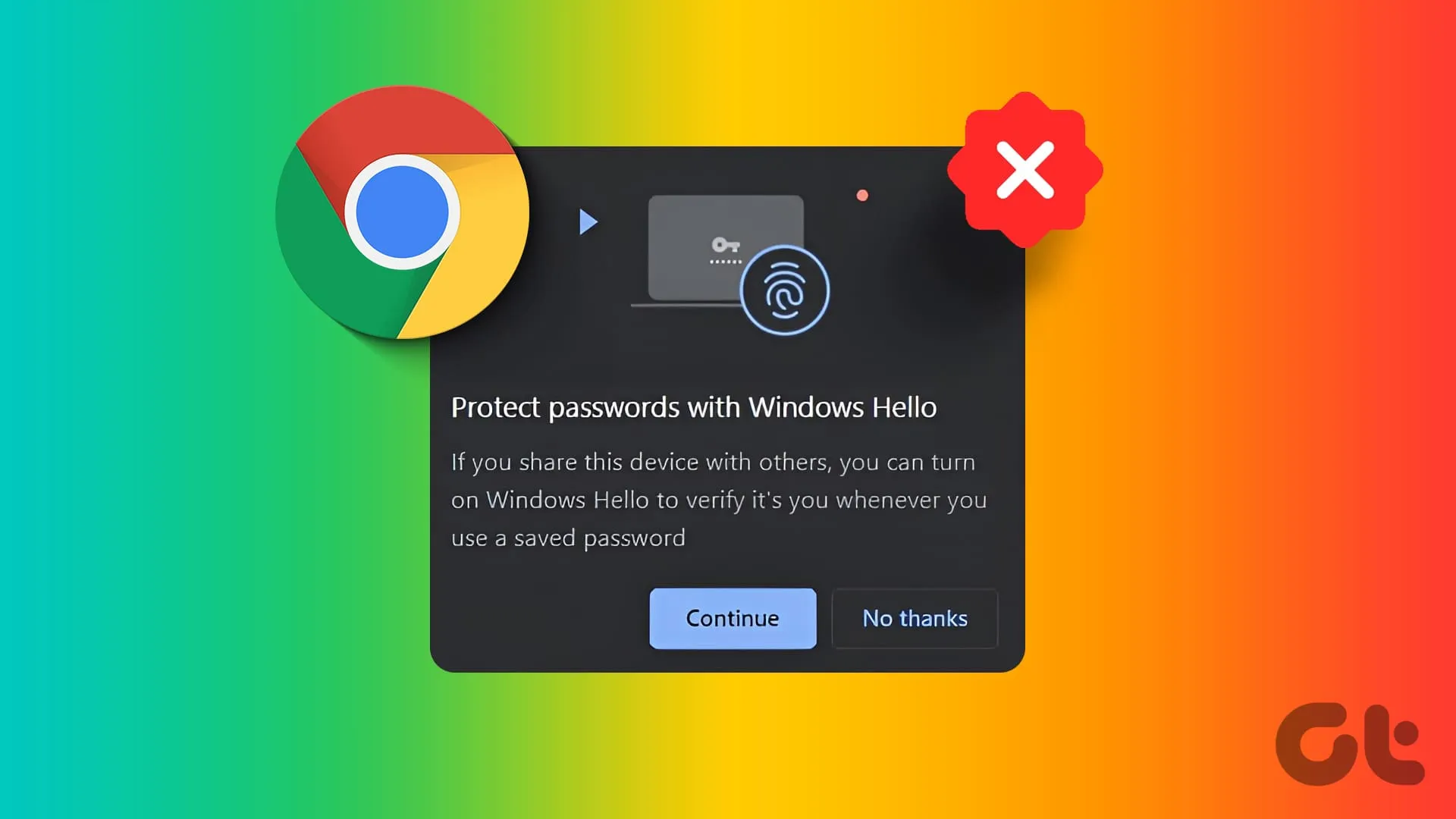
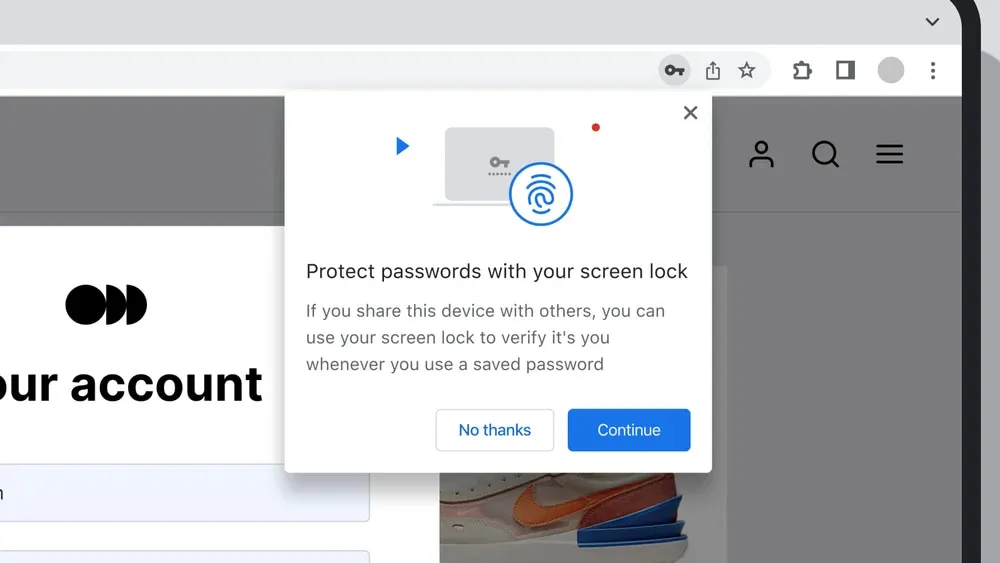
Chrome may use your device’s biometric authentication or screen lock to protect access to saved passwords. This adds a verification step before sensitive login information can be viewed, edited, or used in certain password workflows.
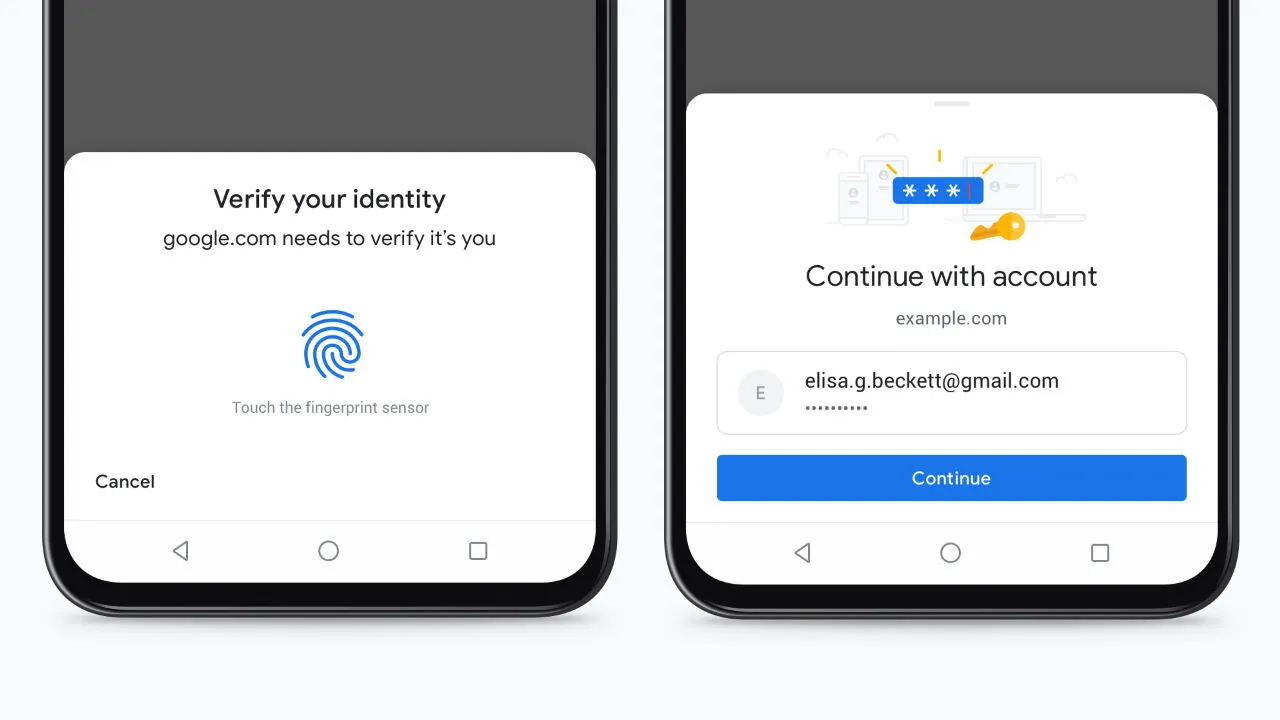
Google Chrome has multiple layers of security built in to prevent unauthorized access to your login information. By default, the browser leverages Biometric technology on the device such as fingerprint sensor (Android, supported laptops) or Face ID/Touch ID (iPhone, iPad) to unlock saved passwords.
The main purpose is to add an extra layer of security. If someone gets a hold of your phone or computer, they won't be able to access your passwords without biometric confirmation. Tools like an open source password manager offer this built-in protection for all your accounts
However, in reality, not everyone is comfortable with this. Some users experience this situation slow fingerprint scanner, frequent recognition errors, or they simply want to control information by password or PIN.
That is why many people seek ways to turn off fingerprints on chrome when managing passwords to make the login process faster, more convenient and more in line with personal security habits.
>>> Learn more: What is Chrome net internals DNS? How to clear DNS cache in Chrome
2. How to Turn Off Fingerprint Unlock for Chrome Passwords?
You want to turn off fingerprints when logging in or viewing passwords on Chrome? Depending on the device you are using (Android, iPhone/iPad or computer), the steps will be slightly different. Below are detailed instructions for each platform.
2.1 How to Turn Off Fingerprint Unlock for Chrome Passwords on Android?
Open the app Chrome and click on the three dots in the upper right corner.
Select Setting → Password Manager (or the “Password” section).
Click the gear icon next to the Password Manager.
Find options “Use screen lock” or “Biometric Unlock” (depending on phone type).
Turn off fingerprints or biometrics.
Confirm by PIN code or device password.
➡ ️ Once disabled, Chrome will ask you to enter a PIN, password, or pattern instead of your fingerprint to access your passwords.
Menu names can vary by Android manufacturer and Chrome version. If Chrome does not provide a separate biometric toggle, check your Android security or biometric settings before changing system-wide authentication.
2.2 How to Disable Face ID or Touch ID for Chrome Passwords on iPhone/iPad?
- Open Chrome and check your password or Google Password Manager settings.
- Review whether biometric authentication is enabled for password access.F
- If necessary, open the iPhone/iPad Face ID & Passcode or Touch ID & Passcode settings.
- Adjust the relevant authentication option.
- Use the device passcode when biometric authentication is unavailable.
The available options depend on your iOS version and the way Chrome or Google Password Manager handles device authentication. Avoid disabling Face ID or Touch ID system-wide unless you also want to disable it for other apps and device functions.
2.3 How to Disable Biometric Unlock for Chrome Passwords on Windows or Mac?
First, check whether Chrome or Google Password Manager provides a device-authentication setting. If authentication is controlled by Windows, review Settings → Accounts → Sign-in options → Windows Hello.
On Windows (Windows Hello):
Enter Windows Installation → Account → Login options.
In the section Windows Hello, delete saved fingerprints.
Chrome will automatically switch to authentication using PIN code or Windows password.
On Mac (Touch ID):
Open Apple Menu → System Settings → Touch ID & Password.
Delete or edit fingerprint access.
Chrome will use Mac user password replacements.
👉 Note: If you don't find the option, update Chrome and operating system. In some cases, you need to disable biometrics directly in the device security settings (for example, remove all fingerprints on Android).
>>> Learn more: What is WebGL? How to Check and Enable WebGL Fingerprinting Effectively
3. What happens when you turn off fingerprint authentication for passwords on Chrome?
Turning off fingerprint authentication does not delete your saved Chrome passwords. Chrome or your device will generally require another supported authentication method, such as a PIN, passcode, pattern, or password.
When you turn off the feature Biometric authentication with fingerprint or Face ID on Chrome, there are some changes to the way you sign in and manage your passwords. Here are the key things to know:
3.1. Chrome switches to using a PIN or device password
Instead of scanning your fingerprint or Face ID, Chrome will ask you to enter device PIN, password or unlock pattern in the following cases:
Access and view saved passwords in Chrome
Automatically fill in login information on websites or apps
Edit or update saved login data
3.2. Passwords remain secure
Disabling fingerprint authentication does not automatically make saved passwords unsafe, but the overall security now depends more heavily on the strength of your PIN, password, passcode, and device security settings.. Chrome continues to protect your login data with layers of security built into your device. Only people who know your PIN, password, or pattern can access this information.
3.3. Login experience may change
You may feel it takes more time to enter a PIN or password. However, many users find this method Provides greater safety and sense of control compared to using fingerprint sensor.
3.4. Fingerprint can be re-enabled at any time
If you change your mind, it is entirely possible Re-enable fingerprint or Face ID authentication right in Chrome settings or your device's security settings. This gives you the flexibility to choose the security method that's right for you.
>>> Learn more: 7 Free Online IP Fingerprint Checker Tools
4. Why Can’t I Turn Off Fingerprint Authentication for Chrome Passwords?
In some cases, the instructions may not match exactly the actual interface on your device. This is because Chrome and operating systems are regularly updated. At the same time each type of phone, tablet or computer will have a different menu arrangement.
If you have difficulty turn off fingerprint on chrome to login password, try the solutions below:
4.1. Update Chrome and operating system
Make sure that Your Chrome browser and device are both upgraded to the latest version. Many security options are only available after a system update.
4.2. Test with different names
Some devices do not use the term “fingerprint” directly, but instead use names such as:
Biometric Unlock
Use screen lock
Device login information
If you can't find "fingerprint", try searching for these terms.
4.3. Turn off system-wide biometric authentication
In case Chrome does not allow direct shutdown:
Enter Main Settings > Security (or Biometrics)
Delete all saved fingerprints This will force Chrome (and other apps) to use a PIN or password for authentication.
4.4. Restart Chrome or device
After changing the settings, you should Restart Chrome or your entire device to ensure the customizations are applied.
4.5. Uninstall and reinstall Chrome
If all the above steps still do not work, try uninstall and reinstall Chrome. This will reset all biometric permissions and allow you to set up your sign-in options from scratch.
👉 If it still doesn't fix it, you can:
Check the document Official device support
Search for information online by specific device model
Note: with IT managed work equipment, the fingerprint feature may have been locked by the system.
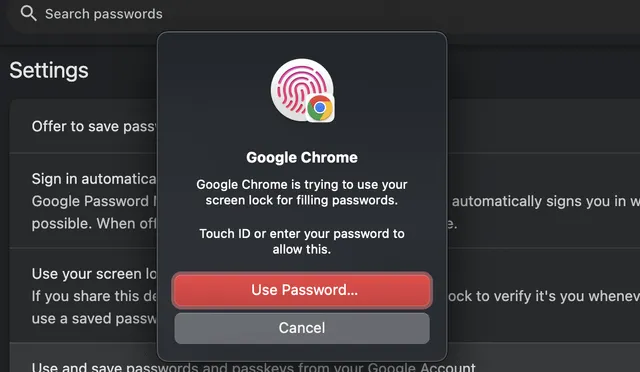
Job turn off fingerprint for passwords on chrome It's not too complicated if you know how to set it up. Depending on your browser version and device, you can customize inChrome Password Manager directly in the sectionSystem security settings. Even if this feature is turned off, your passwords are still securely protected by your PIN or device password.
If you want more flexibility in controlling your login data, consider turning it on/off unlock with fingerprint on Chrome on demand. This is how you can be more proactive about security and ensure a smooth, secure login experience in 2025.
Biometric fingerprint authentication and browser fingerprinting are different concepts. Fingerprint authentication verifies the user through a physical biometric sensor, while browser fingerprinting identifies a browser through signals such as Canvas, WebGL, fonts, screen settings, and device characteristics.
Hidemium is an antidetect browser focused on browser-profile isolation, fingerprint management, proxy integration, and privacy workflows for professional users. It does not replace Chrome’s biometric password authentication settings.
5. Frequently asked questions about how to turn off fingerprints for passwords on Chrome
1. Why can't I turn off fingerprinting for passwords in Chrome?
If you don't see this option, it's possible that your version of Chrome or device doesn't support direct control. In that case, try disabling biometrics at the system level by deleting all registered fingerprints inSecurity Settings. Also, make sure Chrome and your operating system are up to date.
2. Is it safe to disable fingerprint unlock in Chrome?
Yes. Even when you turn it off, Chrome still protects your data with a PIN, password, or device passcode. Fingerprints are just an extra layer of security, and using a strong password or secure PIN still helps keep your login information safe.
3. Can I re-enable fingerprinting for Chrome passwords?
Absolutely. Just go to Chrome's Password Manager or the Security Settings on the device to re-enable biometrics. This is a flexible option that can be turned on or off at any time.
4. Does turning off fingerprints affect other password autofill features?
No. This change only applies to Chrome. Other browsers like Firefox, Edge, or password managers like LastPass, 1Password still have their own security and authentication mechanisms.
5. When I turn off fingerprint unlocking, will the saved passwords on Chrome be lost?
No. Disabling fingerprints does not delete your saved passwords. It only changes the authentication method for access, giving you more flexibility in choosing your security method.
Related Blogs
.png)
Why You Might Need Two Venmo AccountsWhether you are launching a new side hustle, organizing payments for a community group, or simply trying to separate your weekend spending from your professional income, you might find yourself wondering about the logistics of your digital wallet. If you are asking yourself, can I have two Venmo accounts, you are certainly not alone. As our financial lives[…]

A Twitter/X account may be suspended because of spam or platform manipulation, suspicious security activity, violations of X Rules, or copyright complaints. If your Twitter account is suspended, review the notice from X, complete any required identity verification, and use the official appeal process if you believe the suspension was made in error.For brands, advertisers, and marketers, X is an[…]

Did you know? More than 25% of professional eBay sellers are using multiple accounts to increase revenue, spread risk, and avoid permanent bans. However, managing multiple eBay accounts without getting caught is a major challenge—unless you have the right tools.If you are really interested in multi-account eBay, selling anonymously or implementing dropshipping at scale, you've probably[…]

In 2026, major platforms such as Facebook, TikTok, Amazon, and Etsy continue to tighten their algorithms for detecting abnormal behavior. For the MMO (Make Money Online) community, managing multiple accounts on the same device without being detected has become a matter of survival.In this context, proxies are no longer just tools for changing IP addresses—they have become a mandatory component[…]

IP Checker is a feature of Hidemium that automatically matches the location settings of your browser fingerprint profile to your external IP address settings.Web platforms consider a mismatch between system and IP location information a red flag. IP Checker location allows you to avoid this flag IP, fly under the radar, and achieve greater account security.What is IP Checker?When a browser[…]
Multilogin vs Hidemium: Full Comparison 2026Multilogin vs Hidemium: quick answerMultilogin vs Hidemium is a comparison between two antidetect browser platforms used for browser profiles, proxy workflows, and multi-account operations. Multilogin is often seen as an established browser profile platform for professional users, while Hidemium is a strong choice for teams that want flexible profile[…]
