
Two-factor authentication (2FA) is one of the most effective methods to protect your account from common security threats. In this article, Hidemium will guide you step-by-step through enabling 2FA on popular platforms, explaining why the feature is important and how it helps improve personal information security.
1. What is 2FA? A Simple Explanation for Beginners
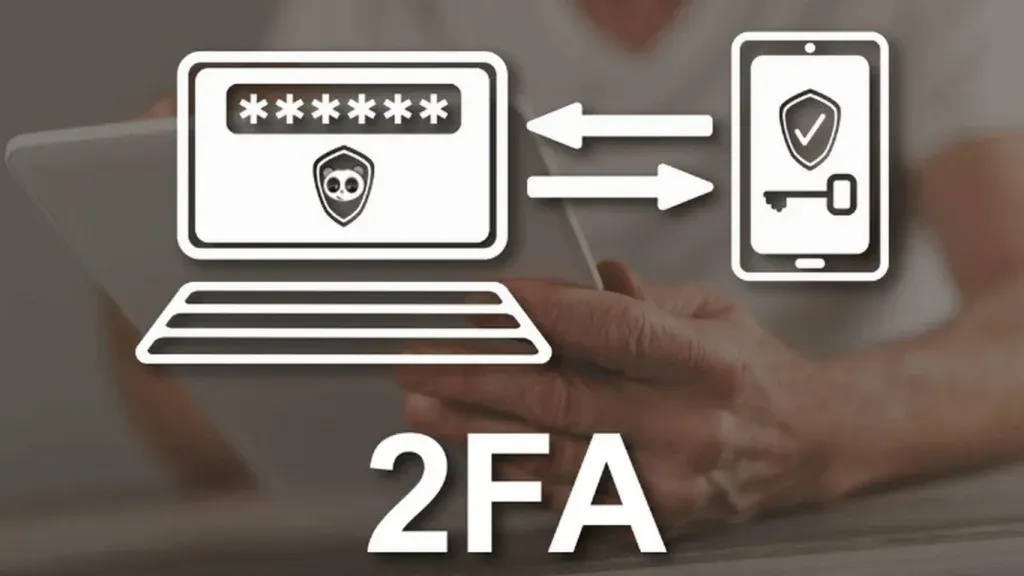
Two-Factor Authentication (2FA) is a security mechanism that requires users to verify their identity with two separate layers of authentication when logging in:
The first element: Information you know – usually login password.
Second factor: Devices you own – such as smartphone, Authenticator App or physical security device (Security Token).
This authentication code is usually OTP code changes over time, which helps increase security and prevent unauthorized access, even if passwords are leaked.
2. Why should you enable two-factor authentication (2FA)?
In the digital age, when phishing attacks and data leaks occur frequently, Using a password alone is not enough. Enabling 2FA adds an important layer of protection to your account. Here are the obvious benefits:
Reduce the risk of account theft: Hackers have difficulty gaining access without a second authentication device.
Protect sensitive data: 2FA helps protect email, social media, bank accounts, and platforms that contain important information.
More secure in case of data breach: Even if your password is leaked, your account is still protected if you have 2FA enabled.
According to statistics, enabling 2FA reduces up to a 99.9% chance of being attacked into account.
3. Popular two-factor authentication (2FA) methods today
Two-factor authentication (2FA)is an effective security solution, helping to strengthen the defense lawyer for personal and business accounts against the risk of unauthorized access. Below is a summary of the most popular 2FA forms today, each method has its own advantages and disadvantages, suitable for each specific usage need.
3.1. SMS Authentication
SMS authentication method allows users to receive OTP (One-Time Password) code via text message each time they log in. After entering the password, you need to enter this OTP code to complete the authentication process.
Advantage: Simple installation, easy to use, suitable for beginners.
Disadvantages: OTP codes can be intercepted or stolen through attacks like SIM swapping, making the security level less than other methods.

3.2. Authenticator App
Authentication applications such as Google Authenticator, Authy good Microsoft Authenticator will generate a one-time authentication code (TOTP) that changes automatically every 30 seconds. Users just need to open the app to get the verification code when logging in.
Advantage: Higher security than SMS because the code is generated directly on the personal device, not transmitted over the network.
Disadvantages: Requires app installation and management on separate devices, which can be inconvenient if the phone is lost.
3.3. Hardware Token
Hardware authentication devices such as YubiKey or U2 Fare physical security keys used to verify identity. They can connect to devices via USB, NFC, or Bluetooth.
Advantage: Extremely high level of security, almost impossible to counterfeit or steal remotely.
Disadvantages: Inconvenient if you travel frequently or don't want to carry extra equipment.
3.4. Biometric Authentication
Biometric authentication uses personal identifying characteristics such as fingerprint, face or iris to log into the system. This technology is increasingly popular on smartphones and personal computers.
Advantage: Fast, convenient, no need to remember passwords or verification codes.
Disadvantages: Not all devices support it, and security may depend on the quality of the hardware and recognition software.
.webp)
3.5. Backup Codes
Backup codes are a set of one-time authentication codes, provided when you set up 2FA. Users should store these codes in a safe place for use in case they cannot access their primary authentication method (such as losing their phone or breaking their device).
Advantage: Effective backup solution in case of emergency.
Disadvantages: If not stored carefully, backup codes can be used by others without permission.
4. Step-by-step guide on how to enable 2FA on popular platforms today
Two-factor authentication (2FA) is one of the most effective security solutions to help increase the safety of personal accounts. Below are detailed instructions on how to enable 2FA on popular platforms such as Google, Facebook, Instagram and X (Twitter).
4.1. Instructions to enable 2FA for Google accounts (Gmail, Google Account)
Google is a pioneer in two-factor authentication. Enabling 2FA helps protect your Gmail account and related services more effectively.
Steps to follow:
Access the item Security Settings in Google account.
Select 2-Step Verification Then press Begin.
Choose authentication methods like: SMS message or authentication application (Google Authenticator, Authy...).
Enter the verification code sent to your device.
Once complete, Google will notify that 2FA has been successfully enabled.
4.2. How to enable two-factor authentication on Facebook
Facebook offers many security methods, of which 2FA is an important option to help prevent unauthorized access to the account.
How to do:
Login to your Facebook account.
Enter Settings & Privacy → Setting.
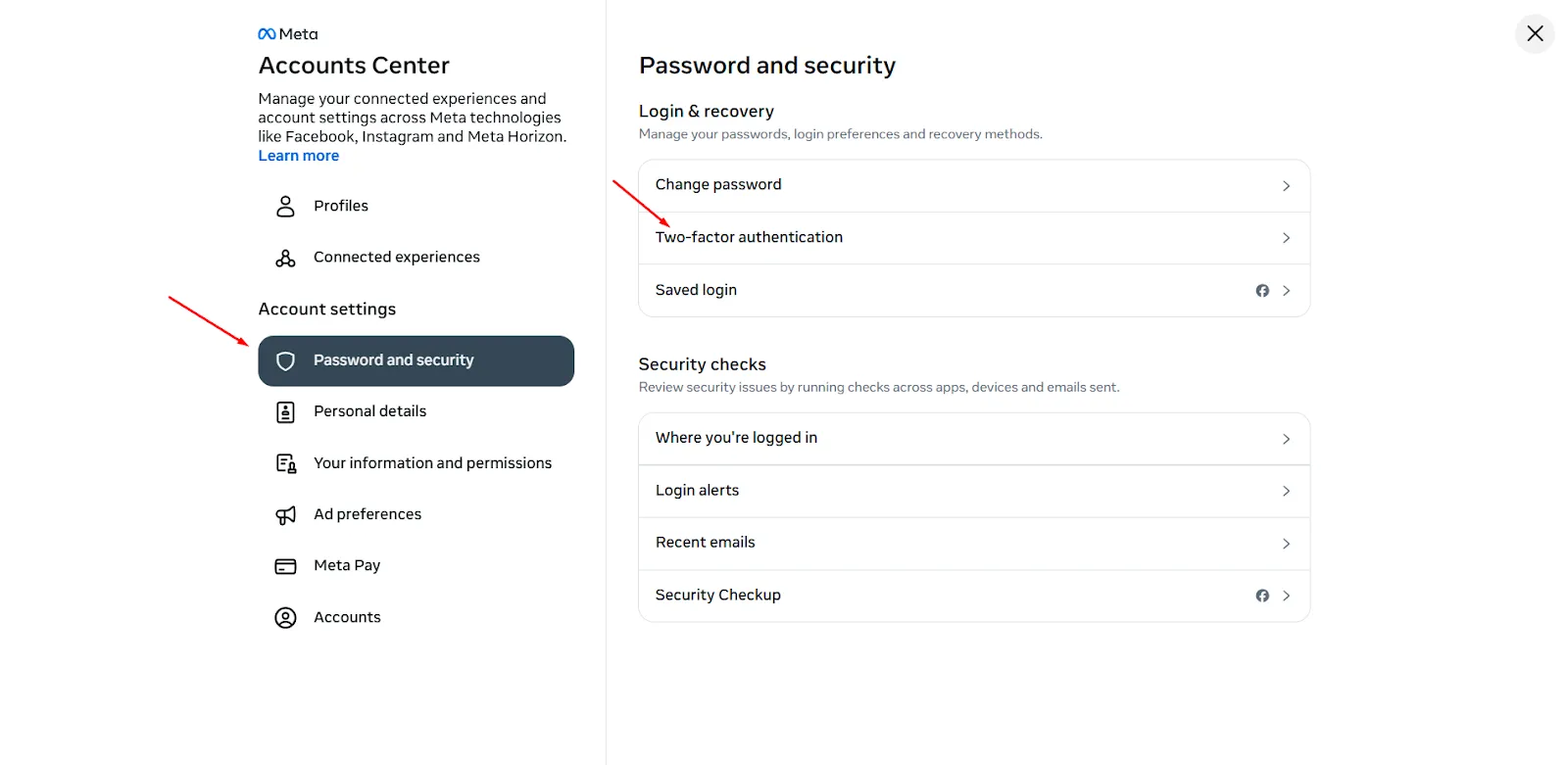
Access Accounts Center → Passwords and Security.
Select Two-Factor Authentication And select the account you want to configure.
Choose an authentication method (app, SMS code, security key...) and follow the instructions.
4.3. Instructions for activating 2FA on Instagram
Instagram uses a security system built in with Facebook, so the process for enabling 2FA is roughly the same.
Steps to enable 2FA on Instagram:
Open Instagram app → go to Setting.
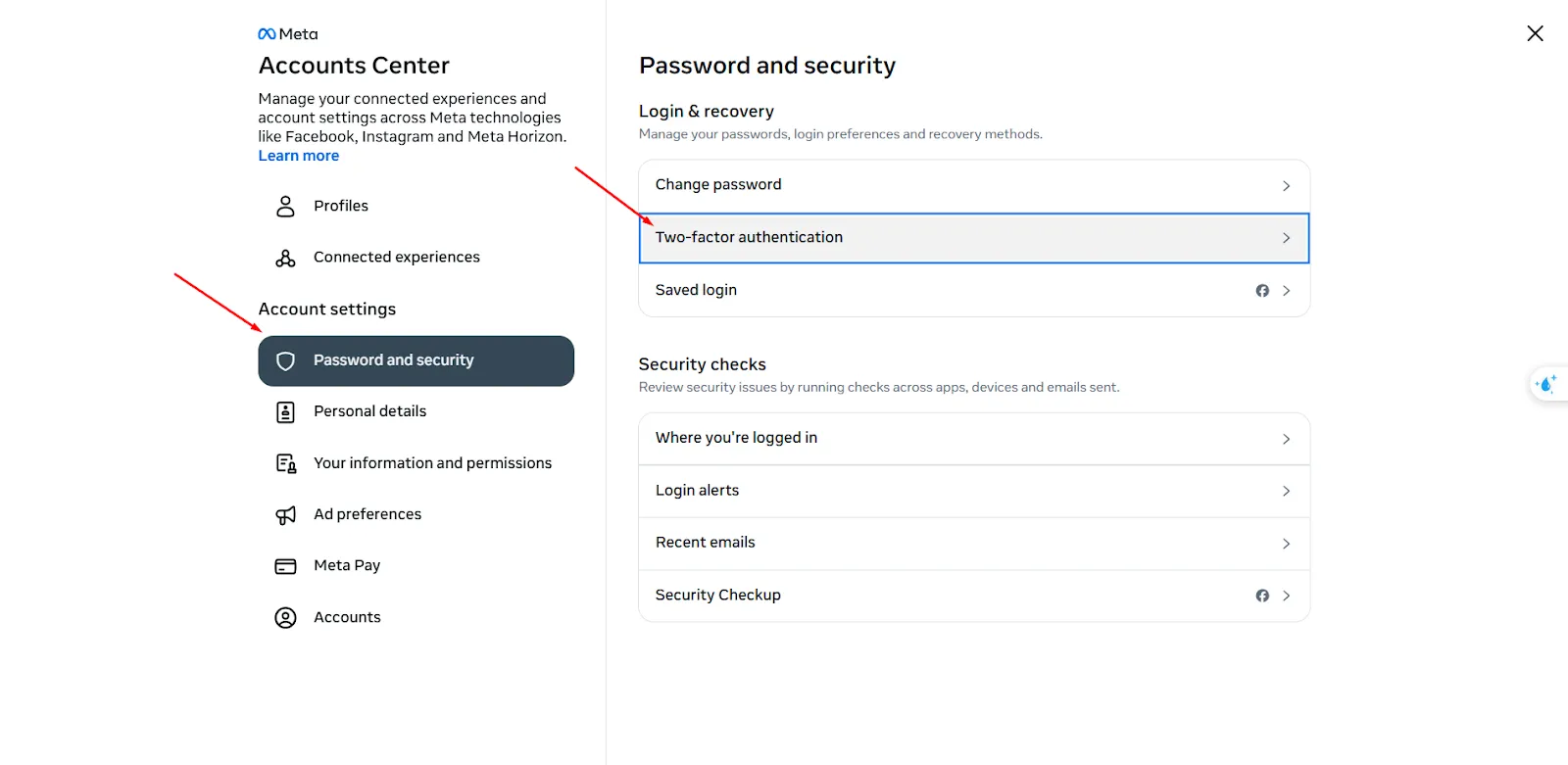
Select Account Center → Passwords and Security.
Click on the item Two-factor authentication (2FA)and follow the on-screen instructions.
Complete verification to enable security features.
4.4. How to enable two-step authentication for X (Twitter)
X (formerly Twitter) also supports enabling 2FA for enhanced user account protection.
How to enable 2FA on Twitter:
Open the Twitter app and go to Setting.
Access Security and Account Access→ select Security.
Click Two-Factor Authentication → Set Up.
Choose the appropriate authentication method: SMS or authenticator app.
Complete verification and make sure 2FA has been successfully enabled.
.webp)
5. Common problems with 2FA and effective solutions
In spite of two-factor authentication (2FA)is considered one of the strongest security layers today, during use, users can still encounter some malfunctioning situations. Below are the most common problems and how to handle them quickly and effectively:
5.1 Lost phone or can't access authentication app
If your authenticator device is lost or you can't open your 2FA app, don't panic. Most platforms now support it Recover account via backup code or Verify via email. So make sure you save your backup codes somewhere safe right after enabling 2FA.
5.2 The verification code is invalid or not working
If you enter your 2FA code and get an error message, it's likely due to a time-delay device. The authentication code depends on the system clock, so double check the time settings on your phone or computer and resync if necessary.
5.3 Can't log in even though 2FA is enabled
In some cases, users encounter login errors even though 2FA is enabled. In that case, you can choose Account recovery option via email or Contact technical support directly for help
Some security principles to apply when using 2FA
To maximize the security benefits of 2FA, you should incorporate the following smart security habits:
Not just SMS authentication: SMS messages can be intercepted or spoofed. Instead, prefer to use authenticator apps like Google Authenticator, Authy, or U2F hardware device for increased safety.
Enable 2FA for all online accounts: It's not just important accounts that need protection. Turn on 2FA for all your social media, email, storage, and financial accounts to reduce your risk of being hacked.
Store backup codes safely: After setting up 2FA, don't forget to store backup codes in your open source password manager or a safe offline location for easy recovery in case of failure.
Periodic security review: Periodically review your 2FA configuration to ensure all devices and authentication methods are still working properly and have not been disabled.
6. Manage multiple accounts securely and efficiently with Hidemium
Hidemiumis a dedicated anonymous browser that makes it easy for users to Create and manage multiple accounts on the same device while still ensuring maximum security. Each profile on Hidemium is set up with a separate set of device parameters, allowing it to function as a standalone device. When you add proxy In profile, the network connection will be completely separate, simulating logging in from different real devices.
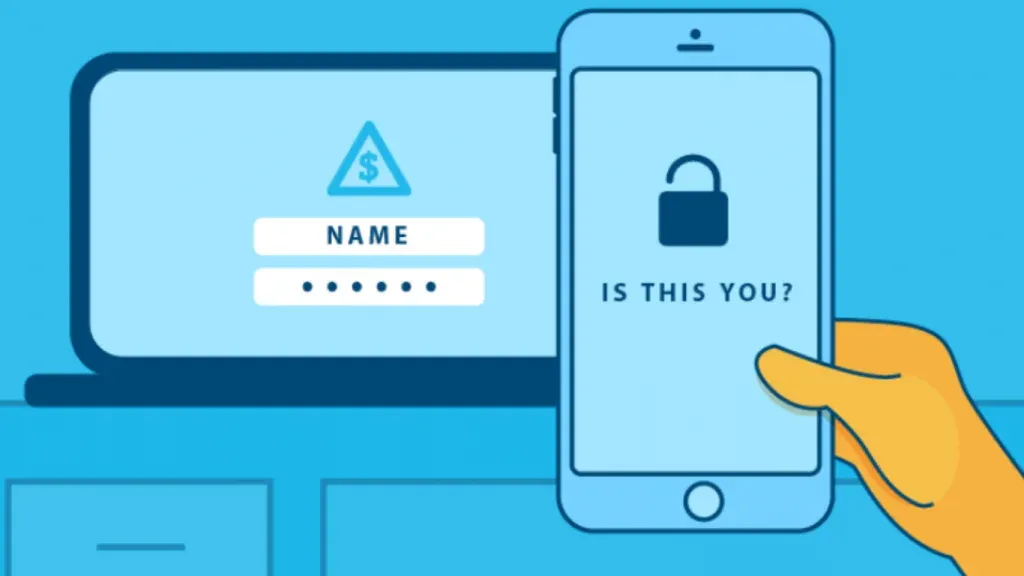
To enhance the level of security, Hidemium integrates the features two-factor authentication (2FA). When 2FA is enabled, you'll need to enter a verification code every time you perform important actions like: log in to your account, delete your profile or transfer your profile to another account. This helps protect accounts from unauthorized access, especially in work environments with high security risks.
You can use popular authentication apps to scan QR codes and receive security codes, including:
Authy: iPhone | Android | Chrome | Linux | macOS | BlackBerry
Google Authenticator: iPhone | Android
Microsoft Authenticator: Windows Phone | Android
Hidemium Authenticator: Access here – enter secret code (secret key) provided by Hidemium to get the authentication code.
7. Conclusion
Two-factor authentication (2FA)is one of the simple but extremely effective security measures to protect online accountsWhether you choose SMS authentication, an authenticator app, hardware devices, or biometrics, enabling 2FA is a necessary step to add a strong layer of protection to your personal and business accounts.
In the context of increasing cyber attacks, proactively deploying security solutions – especially 2FA combined with antidetect browsers like Hidemium– will help you maintain the safety of all your online activities.
🎯 Download Hidemium today and try it free for 3 days!
LEARN MORE:

Related Blogs

1. What is Proxyium?Proxyium is a free web proxy service that offers a safe, secure, and anonymous browsing solution for users. With Proxyium, you can access online content without worrying about exposing personal information. Known for its high-quality residential proxy service, Proxyium is suitable for both businesses and individuals. With over 10 million IP addresses, Proxyium provides a[…]
Are you concerned about protecting your identity and personal information while browsing the internet or performing web scraping tasks? Residential proxies might be the solution you're looking for. In today's digital landscape, many internet users rely on residential proxies to secure their data and improve their web scraping efforts. Simply put, a residential proxy acts as a "bridge" to hide[…]
AdGuard DNS is a free DNS service designed to block intrusive ads and protect your devices from online threats. Instead of using the default DNS servers provided by your internet service provider, you can switch to AdGuard DNS to filter malicious content right from the first connection. This not only enhances your browsing speed but also improves your online privacy and security.In this[…]
.png)
The world of affiliate marketing is booming, offering an exciting opportunity for individuals to earn income by promoting products and services they believe in. You've likely encountered product reviews, informative articles, or engaging social media posts with links prompting you to take action - that's the power of affiliate marketing at play.1. What is Affiliate Marketing?Affiliate marketing[…]

In the era of booming AI technology, Claude AI is emerging as a powerful tool for streamlining automation processes. But what exactly is Claude AI, and how can you use it to generate intelligent automated Prompt Scripts? This article will explain in detail and share SEO strategies that can boost your website ranking by leveraging this topic.1. What is Claude AI? Overview of an Advanced AI[…]
Digital Footprint, also known as digital footprint, is the sum of all the data you leave behind as you move around the Internet. Every click, post, share, or even search contributes to your online presence.So why does your digital footprint matter? Because it reflects your entire digital behavior – from what you disclose to hidden data like metadata attached to photos or browser information. This[…]
