.png)

If Telegram is not sending a verification code, the most common causes are an incorrect phone number, weak mobile signal, SMS filtering, carrier delays, repeated code requests, or an existing Telegram session receiving the code instead. Start by checking your phone number, mobile network, SMS filters, and other logged-in Telegram devices before requesting another code.
In this guide, we explain why the Telegram verification code may not arrive and show 11 practical ways to fix Telegram SMS and login code issues.
- Here are the 11 fixes:
1. Double-check your phone number.
2. Restart your device.
3. Check your mobile network.
4. Disable SMS blocking or filtering.
5. Try phone-call verification if available.
6. Wait before requesting another code.
7. Check Telegram on other logged-in devices.
8. Update or reinstall Telegram.
9. Check VPN, proxy, or regional restrictions.
10. Update Telegram and your operating system.
11. Contact Telegram Support.
1. Why Is Telegram Not Sending Verification Code to My Phone?
There are several reasons, from technical glitches to user errors. Below are the most common causes:
Incorrect phone number
Double-check that you've entered the correct country code and phone number, with no extra spaces or special characters.Weak network connection
Sometimes the issue lies with your mobile signal. If your SIM signal is weak or you're in a low-signal area, the verification code may not arrive.SMS blocked by provider or app settings
Some carriers may block messages from unknown senders, including Telegram codes. Also, your phone may have SMS filtering features enabled.Temporary service provider issues
Mobile networks sometimes experience temporary problems that delay or block SMS delivery.Using virtual phone numbers
Telegram often blocks verification codes sent to temporary or virtual numbers.Too many verification requests
Requesting the code too many times in a short period may lead Telegram to temporarily stop sending it for security reasons.Device or app issues
Problems with the Telegram app or your device's system may interfere with code delivery. This includes server downtime or temporary phone glitches.Regional restrictions
Telegram access is restricted in some countries or blocked by firewalls, preventing code delivery.Code sent to another Telegram session
If your account is already logged in on another device, Telegram may deliver the login code inside the existing Telegram session instead of sending an SMS immediately.
=>> Once you understand the possible causes, we’ll provide 11 effective ways to solve the issue and help you receive your Telegram code successfully.
2. How to Fix Telegram Not Sending SMS Code
2.1 Is Your Telegram Phone Number Correct?
To fix this, confirm your country code and phone number before requesting another verification code.
A simple yet effective solution is to make sure you have entered the correct phone number. Users often make small mistakes, especially with the country code. Open the Telegram app and restart the login process. Ensure you've selected the correct country code and entered your phone number accurately. This can often resolve the issue right away.
2.2 Can Restarting Your Phone Fix a Missing Telegram Code?
Restart your device to clear temporary mobile-network or software problems that may interfere with SMS delivery.
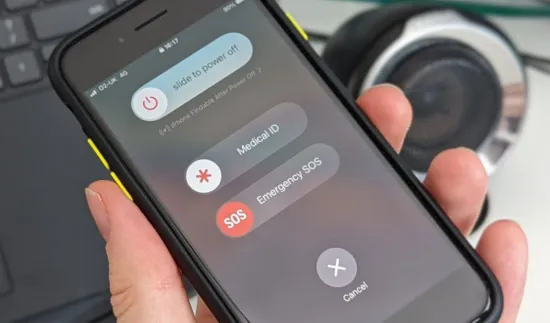
Sometimes, restarting your phone can fix temporary software or network issues. Turn off your device for about 10–15 seconds, then turn it back on. Once restarted, try requesting the Telegram verification code again.
2.3 Is Your Mobile Network Preventing the Telegram SMS Code?
Check whether your SIM has a stable mobile signal before requesting another Telegram verification SMS.
To receive a verification code via SMS, your phone needs a stable network connection. Check your signal strength. If the signal is weak or absent, move to an area with better coverage.Check that your SIM has mobile signal and can receive regular SMS messages. You can also toggle Airplane Mode on and off to reconnect to the cellular network. If poor signal is a regular issue, consider switching carriers or enabling Wi-Fi calling.
2.4 Are SMS Filters Blocking the Telegram Verification Code?
Disable SMS spam filters temporarily and check whether your carrier blocks automated verification messages.
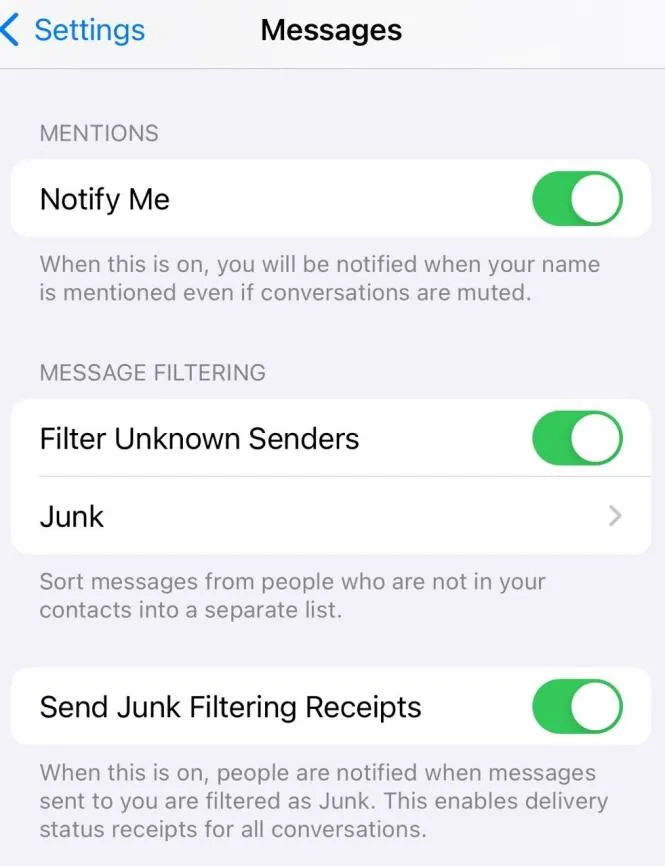
Some phones or carriers offer SMS filtering to block spam, which can also block important messages like Telegram verification codes. Check your phone settings and disable SMS filters or blockers. If necessary, contact your carrier to ensure no numbers or services are being blocked. Also, check third-party apps like Truecaller or antivirus tools, which might be blocking Telegram messages.
2.5 Can You Receive the Telegram Code by Phone Call?
If Telegram offers a phone-call verification option, use it when SMS delivery is unavailable.
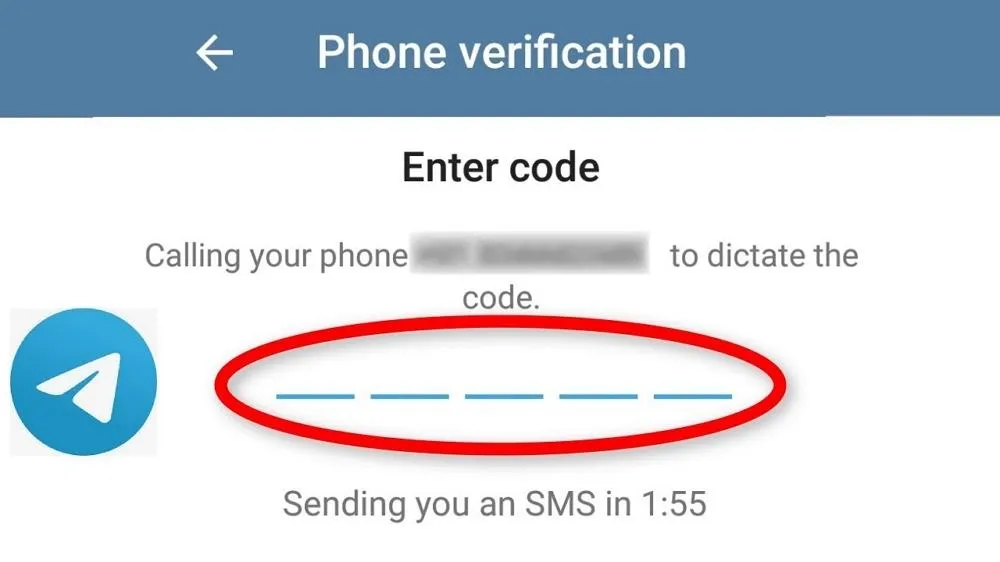
If SMS doesn't work, Telegram offers a phone call verification option. After requesting the code, select “Call me.” Telegram will call you and provide the code via automated voice. Listen carefully and write down the code.Verification options may vary depending on the account, device, region, and login flow.
2.6 How Long Should You Wait Before Requesting Another Telegram Code?
If you have requested several codes, stop requesting new ones and let the current verification attempt expire or complete first.
If you've requested the code multiple times in a short period, Telegram might temporarily pause sending codes to prevent spam or abuse. As a practical troubleshooting step, waiting 5–10 minutes may help when SMS delivery is delayed. before requesting again. During this time, check for any delayed SMS. Once the waiting period ends, try again. While inconvenient, this delay is a key security measure.
2.7 Check Telegram on Other Devices
Are you using Telegram on other devices? The verification code might have been sent there. Check if you’ve already opened a Telegram session on another device. If so, you may retrieve the code from there and enter it on your main device to complete the verification. Check your existing Telegram sessions because the login code may have been delivered inside Telegram instead of by SMS. If Telegram is already logged in on another phone, tablet, or desktop, check that session for a Telegram service message containing the login code.
2.8 Can Updating or Reinstalling Telegram Fix the Login Code Issue?
Update Telegram first; reinstall the app only if the login process continues to malfunction. If previous methods haven't worked, reinstalling the Telegram app might solve the issue. Similar to restarting your phone, reinstalling can fix app-related bugs. First, uninstall Telegram from your device, restart your phone, then download the latest version from the App Store or Google Play and try logging in again.
2.9 Can a VPN or Proxy Help When Telegram Is Restricted?
If Telegram is blocked in your country, a VPN or proxy can help bypass restrictions. These tools encrypt your connection, not only helping you receive the verification code but also improving connection speed and stability.
VPNs and proxies are especially useful for managing multiple Telegram accounts. Telegram may ban your account if it detects multiple accounts managed by one person or from an unstable network. A VPN/proxy hides your IP address, reducing detection risk.
For even better security, integrate proxies with the Hidemium antidetect browser. Hidemium lets you create separate browser fingerprints and proxy configurations for each Telegram account, ensuring total isolation and privacy. It’s an ideal tool for managing Telegram accounts securely.
2.10 Could an Outdated App or Operating System Cause the Problem?
Keep both Telegram and your phone's operating system updated to eliminate compatibility and application bugs. Using an outdated version of Telegram or an unupdated phone operating system can be the reason why you’re not receiving the verification code. To fix this, go to your app store and check if a new Telegram update is available.
Also, make sure your phone’s operating system is up to date by going to Settings > Software Update.
Once everything is updated, try requesting the verification code again.
2.11 Contact Telegram Support
Contact Telegram Support if you have confirmed your number, network, SMS settings, and active sessions but still cannot receive the verification code.
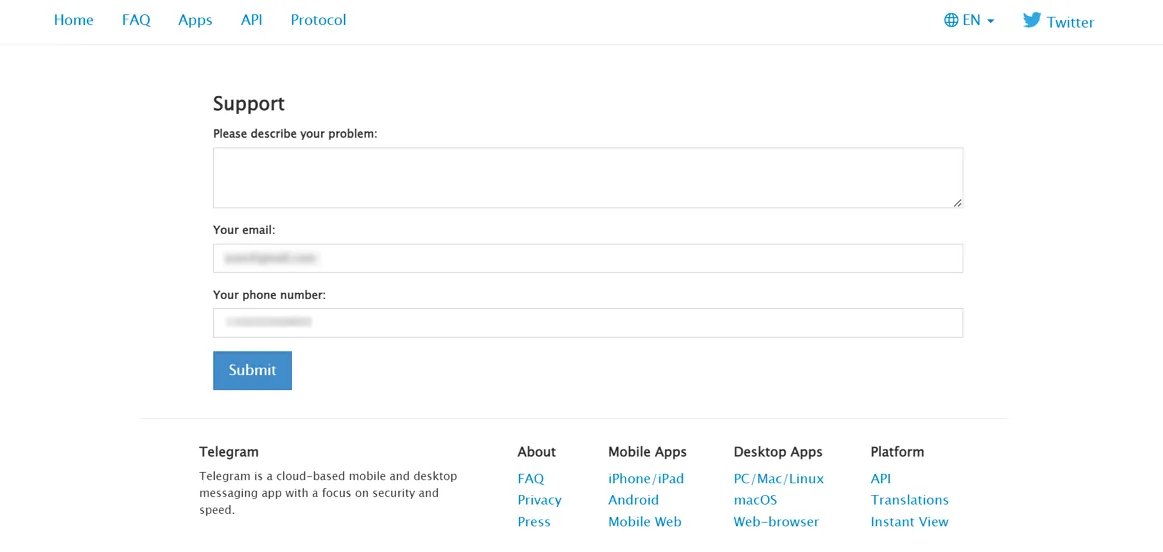
If none of the above methods work, you should reach out to Telegram's support team for assistance. Simply fill out the support request form on Telegram’s official website (Never share your verification code or sensitive account credentials in public forums).
Conclusion
For the fastest troubleshooting process, start with your phone number, country code, mobile signal, SMS filtering, and existing Telegram sessions.
If those checks fail, wait before requesting another code and update Telegram. Consider a VPN or proxy only when Telegram itself cannot connect because of a network restriction—not as a guaranteed fix for SMS delivery.
With these methods, we hope you’ll be able to resolve the issue of Telegram not sending the verification code. Make the most of Hidemium to streamline and enhance your Telegram account management!
>>> BYPASS Telegram Games with One Click
FAQ
Why am I not receiving the Telegram verification code via SMS?
Common reasons include entering an incorrect phone number or country code, a weak network signal, the carrier or app blocking SMS messages, temporary service provider issues, using a virtual number, or requesting the code too many times within a short period.
What should I do first if Telegram isn't sending the verification code?
Double-check your phone number and country code, restart your device, ensure you have a stable mobile signal, disable any SMS blocking or filtering features, and try again after 5–10 minutes before moving on to more complex steps like reinstalling the app.
Can I use a phone call instead of SMS to receive the Telegram code?
Yes. If SMS isn't working, select the "Call me" option. Telegram will call you and read out the verification code using an automated voice. Simply note down the code and enter it into the app to complete the login.
Can you receive a verification code when signing up for Telegram using a virtual phone number?
Telegram often restricts or blocks verification codes sent to virtual or temporary phone numbers. For a stable registration and user experience, you should use a real number provided by a legitimate carrier and avoid cheap virtual number services.
Do VPNs and antidetect browsers like Hidemium help make receiving Telegram codes more stable?
VPNs and proxies help bypass Telegram blocks in restricted regions and stabilize IP addresses when managing multiple accounts. By combining them with an antidetect browser like Hidemium, you can isolate fingerprints and proxies for each account, thereby reducing the risk of account bans or restrictions.
Related Blogs
Having your Reddit account temporarily suspended can be frustrating, especially if you don't know why. Understanding the reasons and how to fix it can help you regain access quickly or safely create a new account. In this article, Hidemium will break down the common reasons why Reddit accounts get suspended, how long they last, and what to look for when creating a new Reddit account.1. Common[…]
Have you heard of Telnet but don't really understand how it works or its applications? In the world of networking technology, Telnet used to be one of the core tools for remote device management. The following article is from Antidetect Browser Hidemium will help you discover What is Telnet?, how it works, practical applications as well as weaknesses that have led to it being gradually replaced[…]
.png)
TikTok is not just an entertainment app but also a "goldmine" for content creators and brands to generate massive income. However, to make your posts on TikTok attract millions of views, selecting the ideal posting time—often referred to as the "golden hour"—is a crucial factor in increasing engagement and effectively connecting with your audience.1. What is the "golden hour" for posting on[…]

Did you know? More than 25% of professional eBay sellers are using multiple accounts to increase revenue, spread risk, and avoid permanent bans. However, managing multiple eBay accounts without getting caught is a major challenge—unless you have the right tools.If you are really interested in multi-account eBay, selling anonymously or implementing dropshipping at scale, you've probably[…]
“You have been banned” is a situation often faced by most advertisers, affiliate marketers, or e-commerce professionals… on platforms:Can you get banned from FacebookCan you get banned from GoogleBanned amazon accountSo why? How to find out why I was banned from Facebook? What do I need to do to solve this problem? Find the answer right away in this article.What if your account has been[…]
1. What is DNS Encryption?DNS encryption is a security technology that protects domain name queries when you visit websites. Instead of sending plain-text requests, your DNS queries are encrypted to prevent third-party tracking or interference. This is a key method to enhance online privacy and security.>>> Learn more: Latest Viettel DNS & How to change DNS to improve Internet speed2. Why Does[…]
