

Imagine you are relaxing after a day of work by playing a game on your browser, when suddenly a message appears: “Your browser does not support WebGL.” This will definitely make you upset as you cannot continue your experience.
At that point, you might be wondering: “Is there anything wrong with my device?” Don't worry! The problem is not with your device, but usually WebGL is not enabled in the browser or is related to the graphics card (GPU).
If you are not sure What is WebGL or how to fix this error, continue reading the article to understand how to check and activate WebGL fingerprint – an important factor in optimizing the graphics experience on modern browsers.
1. What is WebGL?
WebGL (Web Graphics Library)is a standards-based web graphics library OpenGL ES 2.0, which allows interactive 2D and 3D graphics to be displayed directly in the browser without the need for additional plugins. This technology was developed by the non-profit organization Khronos Group And is now widely integrated in popular browsers such as Google Chrome, Mozilla Firefox, Safari, Microsoft Edge, v.v.

>>> Learn more: What is WebGL? Do websites collect WebGL fingerprints?
2. How WebGL works
WebGL is based on a combination of three main programming languages: HTML5, JavaScript and GLSL (OpenGL Shading Language). Specifically:
GLSL used to write shaders – graphics code that executes directly on the GPU, increasing processing performance.
JavaScript and HTML5 acts as a coordinating language, creating an environment for displaying and managing graphical objects.
By leveraging the power of the GPU, WebGL enables web applications to achieve higher performance in displaying 3D images and smooth interactive effects, especially suitable for games, simulators and complex graphics platforms.
3. What are the benefits of using WebGL?
WebGL offers many outstanding benefits, especially the ability to display 3D graphics directly on the browser without installing additional software. This technology is easily integrated with HTML, works efficiently and supports multiple platforms, helping to optimize the user experience.
Here are 3 outstanding advantages of WebGL:
Handle complex tasks that many other graphics technologies cannot do, expanding the range of applications.
Powerful hardware acceleration, delivering superior performance in 3D games, simulations, and advanced visualizations.
Shader support, allowing the creation of realistic, vivid and in-depth graphic effects.
In addition, WebGL is also applied in many fields such as: architecture, game development, animated videos, molecular simulations... In addition, it also supports complex data visualization such as engineering survey maps or 3D medical MRI scans - helping to analyze and process information more intuitively.
4. Why doesn't your browser support WebGL?
There are many reasons why a browser may not support WebGL, and identifying the correct reason will help you quickly fix the error.
One of the common reasons is that you are using an old version of your browser – one that is not designed to support WebGL technology. In this case, simply updating to the latest version should fix the problem.
The second reason is that hardware acceleration may be disabled. While not required, many browsers – especially Google Chrome – require it to be enabled for WebGL to work properly. Therefore, you should check and re-enable hardware acceleration in your browser settings.
Another factor could be that your graphics card driver is outdated, unstable, or not powerful enough to support WebGL effectively. Updating your driver to the latest version will help increase compatibility and improve graphics display performance.
Additionally, some browsers may actively block the graphics card to prevent crashes or system errors – this also prevents WebGL from working properly.
Don't worry too much, in the next section we will guide you in detail on how to check and enable WebGL on each specific browser such as Chrome, Firefox or Edge.
>>> Learn more:How to identify anti detect with good fake Webrtc function
5. Instructions for checking and enabling WebGL to help the browser run smoother
WebGL (Web Graphics Library) plays an important role in displaying 3D graphics and enhancing user experience on browsers. If you are having problems with browser display or performance, check and enable WebGL following the detailed instructions below for each popular browser.
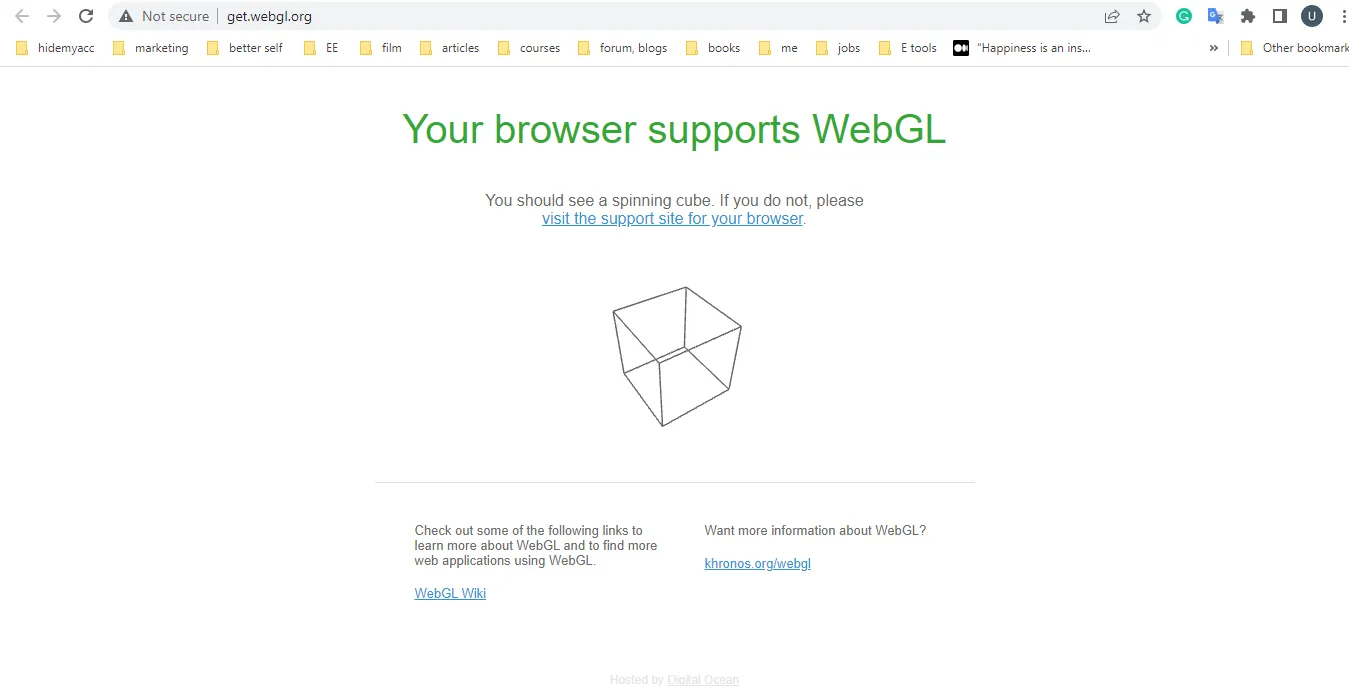
5.1. Enable and test WebGL on Chrome
Step 1: Enable WebGL
Open Chrome, go to:chrome://settings/system
Enable option Use hardware acceleration when available (blue)

Press Relaunch to restart the browser
Then go to:chrome://flags/
Search for keywords WebGL→ In the section WebGL Draft Extensions, select Enabled

Step 2: Check WebGL status
Access:chrome://gpu/
Press Ctrl + To find WebGL in the section Graphics Feature Status
If displayed Hardware accelerated on the WebGL or WebGL2 line → WebGL is enabled and working
Otherwise, you will see the item Problems Detected – reasons why hardware acceleration is not available

5.2. How to enable WebGL on Firefox
Step 1: Access advanced settings
Open Firefox, type about:config into the address bar
Press Accept the Risk and Continue

Find and adjust the following parameters:
webgl.disabled→ value false

webgl.force-enabled→ value true

webgl.enable-prototype-webgl2→ press Add if not already, set it to true

Step 2: Restart Firefox To apply the changes.
5.3. Enable WebGL on Microsoft Edge browser
Microsoft Edge has a similar process to Chrome.
Step 1: Enable hardware acceleration
Open Edge, typeedge://settings/system into the address bar
Enable option Use hardware acceleration when available (blue)
Restart browser

Step 2: Check WebGL status
Access:edge://gpu/
Press Ctrl + To find WebGL
If present Hardware accelerated WebGL or WebGL2 stream → WebGL works normally
If not, the item Problems Detected will tell you why hardware acceleration is disabled.

6. Is WebGL really safe?
WebGL has many potential security risks that users need to be aware of. That is the reason for the birth of WebGL Fingerprint – a method to identify browser fingerprints through the WebGL graphics library. In addition, WebRTC is also an important factor that helps websites detect devices by collecting digital fingerprints. You can learn more about WebRTC in our blog.
For those who make money online and manage multiple accounts, simply faking a Web graphics library is not enough. Platforms can still detect based on geolocation, operating system, screen resolution, user agent string, and many other parameters. To protect your account and avoid the risk of being banned, using an anti-detection browser like Hidemium is the optimal solution.
Hidemium not only helps to fake browser fingerprints but also supports creating and managing multiple accounts on the same software, helping you operate efficiently and safely. If interested, please contact us for more detailed advice.
>>> Learn more: What is WebRTC? Do websites collect WebRTC fingerprints?
7. Conclusion
This article has guided you on how to check and enable WebGL, helping to fix related issues and maintain stable, uninterrupted online activities. Hopefully this information will help you protect your account and improve your user experience.
Related Blogs

Did you know? More than 25% of professional eBay sellers are using multiple accounts to increase revenue, spread risk, and avoid permanent bans. However, managing multiple eBay accounts without getting caught is a major challenge—unless you have the right tools.If you are really interested in multi-account eBay, selling anonymously or implementing dropshipping at scale, you've probably[…]
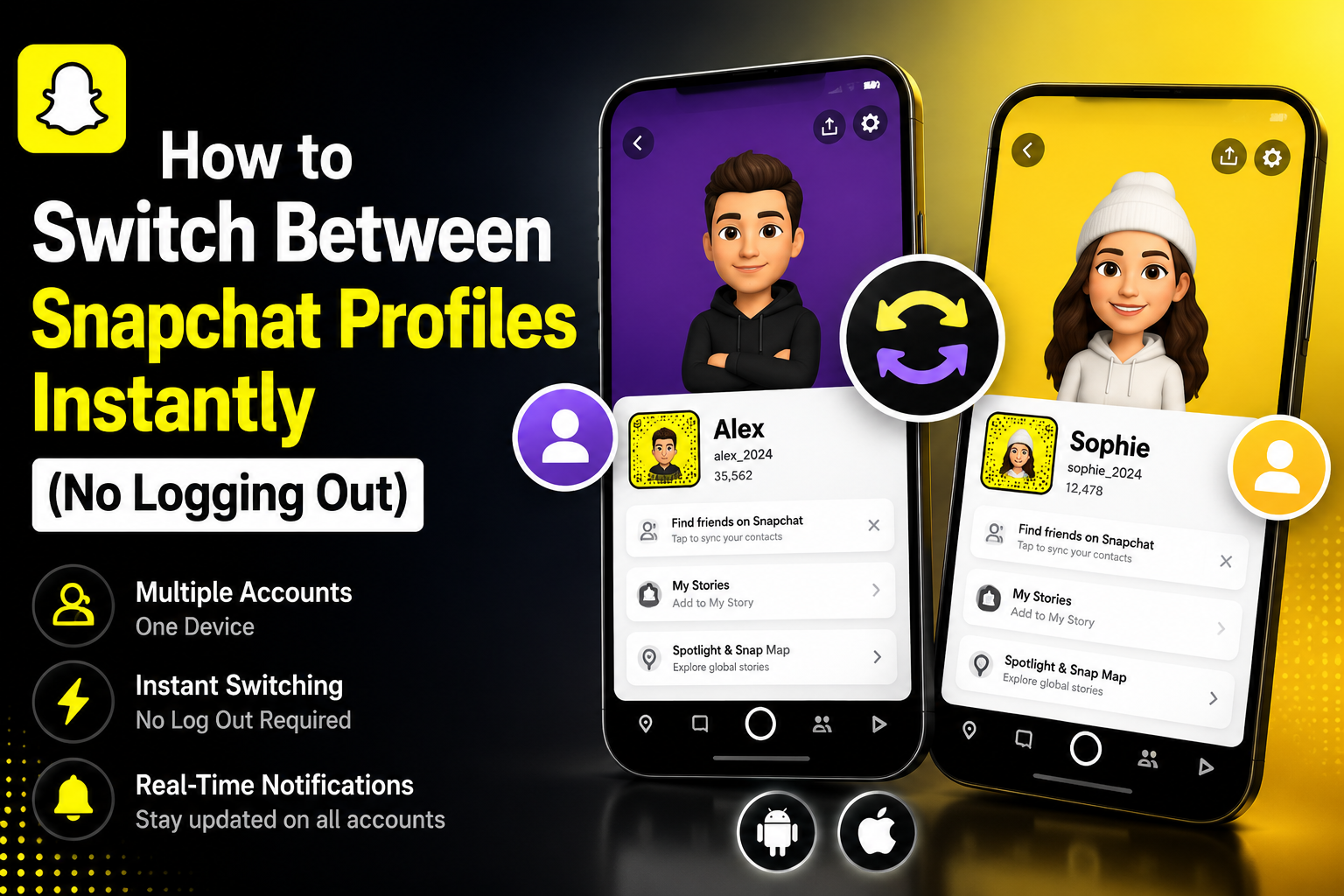
Snapchat has evolved far beyond a simple, ephemeral photo-sharing application. Today, it is a robust platform for communicating with close friends, consuming media, following creators, and even building brand awareness. But as your digital footprint expands, your needs change. You might suddenly find yourself wondering: can you have multiple snapchat accounts?Managing Multiple Snapchat Accounts:[…]
Proxy302 Review: A Wise Choice If You Love Flexibility! In today's world, having the right proxy service can make a big difference for businesses. They need flexibility to handle different online tasks easily.Proxy302 stands out because it lets users pick just what they need. This article shares why Proxy302 is a smart choice if you want options in your proxy service.Proxy302 offers many kinds of[…]
.png)
When managing multiple accounts, performing data scraping, or ensuring online privacy, choosing a stable residential proxy is essential. LokiProxy has recently gained attention for its outstanding performance, global IP coverage, and competitive pricing. It also offers an easy-to-use control panel and integrates smoothly with tools like Hidemium.What is LokiProxy?LokiProxy is a global residential[…]
As cyber threats and tracking technologies continue to advance, proxy servers have become a core layer of digital identity protection—used to isolate browser environments, prevent IP-based associations, and support stable multi-account operations. For data teams, marketers, and cross-border businesses, combining a high-quality SOCKS5 proxy with stealthy anti-detection browsers is now essential[…]

Have you ever searched for a pair of shoes online, only to see ads for them minutes later across every website you visit? Most people assume "Incognito Mode" stops this. In reality, standard private browsing only hides your local history from others using the same computer — external websites and ad networks continue tracking you without interruption.Every time you go online, you leave behind a[…]
